3 Re-engagement Flows to Stop Pipeline Leaks
Your pipeline isn't just leaking from the top. It's leaking from the middle.
Most teams focus on generating new leads through additional forms, ads, and content. However, the most efficient recovery strategy involves retaining existing demand rather than creating new demand. When prospects book meetings and fail to attend, accept demos then cancel, or abandon forms mid-submission, these represent genuine buying signals that go unaddressed due to slow or nonexistent follow-up.
Re-engaging prospects who have already shown interest proves cheaper and faster than acquiring new leads. Unfortunately, most organizations lack systematic processes for this recovery. Reps typically discover no-shows manually, add prospects to engagement cadences if remembered, and move forward. Cancelled meetings remain in CRM systems without defined next steps. Abandoned forms go completely unnoticed.
Orchestrator addresses this gap by enabling automated Flows that trigger instantly when signals occur, match prospects to CRM records, apply decision logic based on account data, and execute actions automatically—whether enrolling someone in re-engagement cadences, alerting account owners, or notifying leadership.
Flow 1: Re-engage No-Shows Automatically
When prospects fail to attend scheduled demos, reps normally must manually navigate engagement platforms like Gong, Outreach, or Salesloft to trigger re-engagement sequences. This consumes valuable prospecting time.
Setup Steps:
-
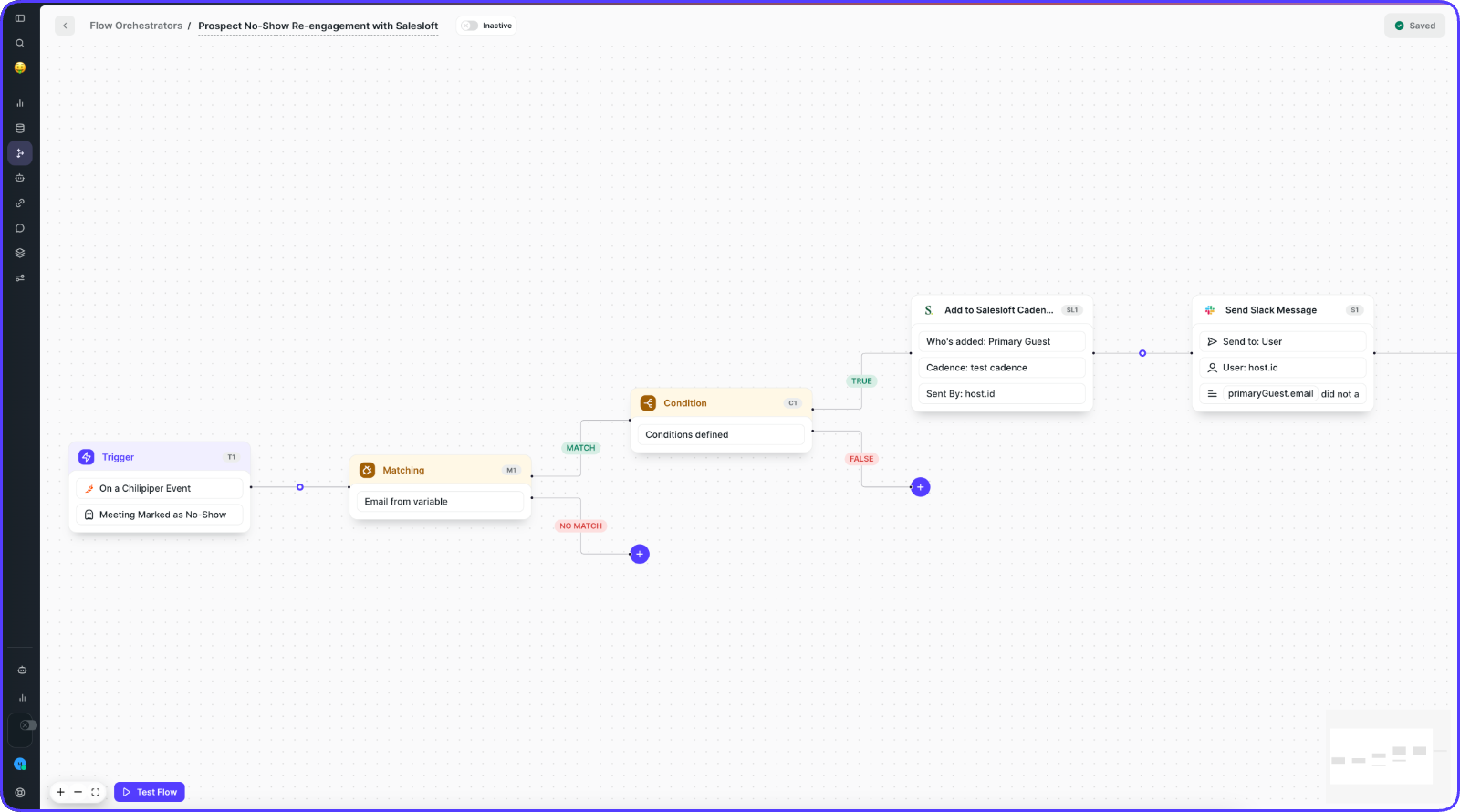
Set the Trigger: Create a new Flow selecting On a Chili Piper Event → Meeting Events → Meeting Marked as No-Show
-
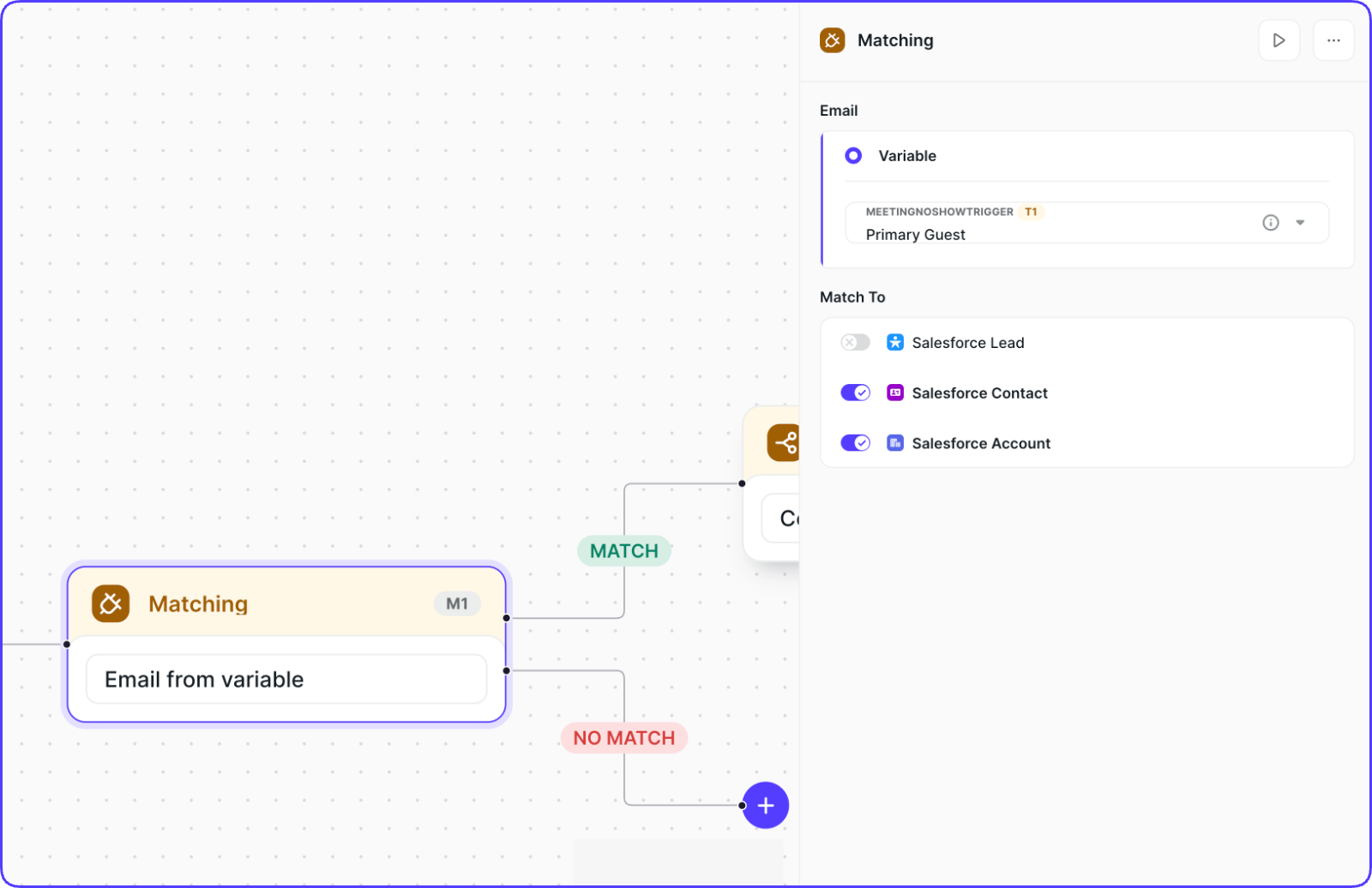
Add a Matching Node: Select the Primary Guest variable from the Trigger and enable Lead, Contact, and/or Account matching in Salesforce. This connects the guest to CRM data for informed branching.
-
Add a Condition Node (Optional): With Matching enabled, branch based on any CRM field—differentiating Prospects from others, routing by assignee, deal stage, headcount, or industry based on GTM strategy.
-
Add the Engagement Action Node:
For Salesloft or Outreach:
- Add the respective Node
- Select Primary Guest from Meeting as the prospect to add
- Choose your preferred re-engagement Cadence or Sequence
- Set the sender to the Meeting Assignee for personalization
For Gong Engage:
- Add the Gong Engage Flow Node
- Set CRM Prospect ID to Lead and/or Contact from the Matching Node
- Select your preferred re-engagement Flow
- Set Flow Instance Owner to Assignee or Booker
- Use Field Placeholders like
sender.primary_scheduling_linkto inject the reschedule link, keeping the original opportunity attached
Flow 2: Re-engage Abandoned Forms with Instant Alerts
When prospects begin completing demo request forms but leave without submitting, most teams have zero visibility into this drop-off. These partially engaged prospects represent lost opportunity.
Setup Steps:
-
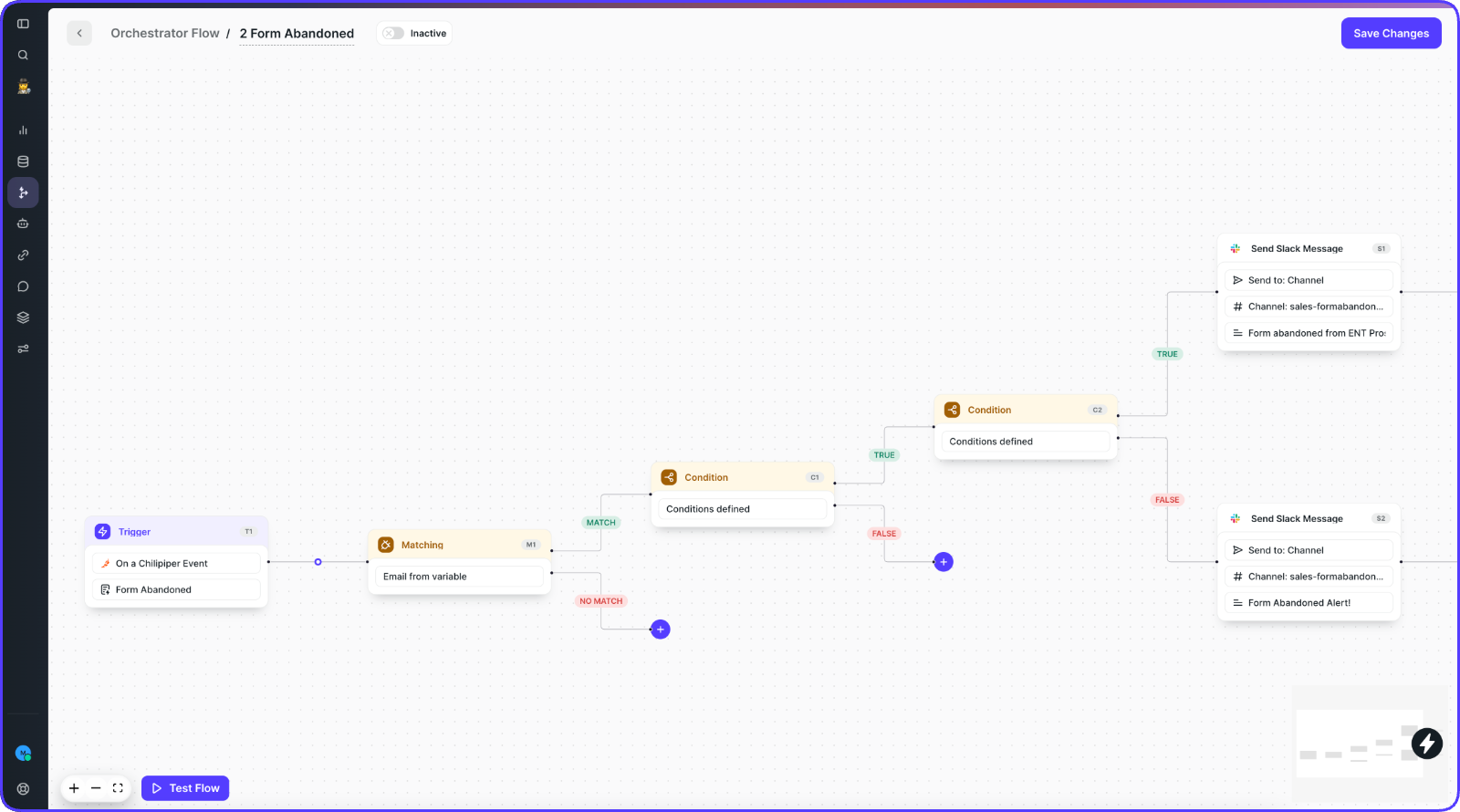
Set the Trigger: Create a new Flow selecting On a Chili Piper Event → Form Events → Form Abandoned
-
Add a Matching Node: Choose the Primary Guest variable and enable matching for Lead, Contact, and/or Account in Salesforce. This connects abandoned forms to correct CRM records, providing account context rather than orphaned email addresses.
-
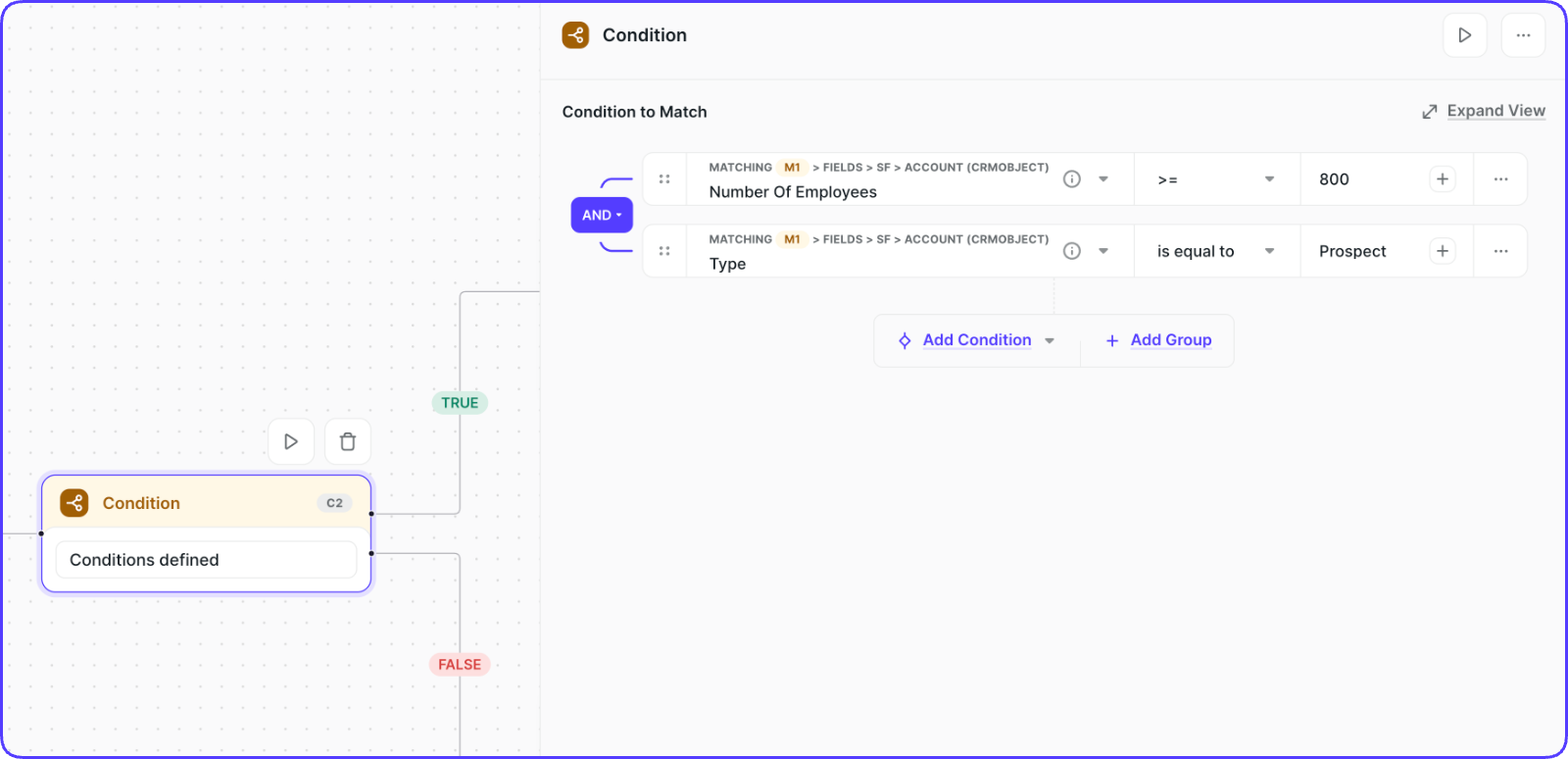
Add a Condition Node: Route alerts based on abandonment importance. Example logic: Route differently when Type equals "Prospect" AND Number of Employees exceeds 800—catching Enterprise prospects before they disappear.
-
TRUE PATH Actions:
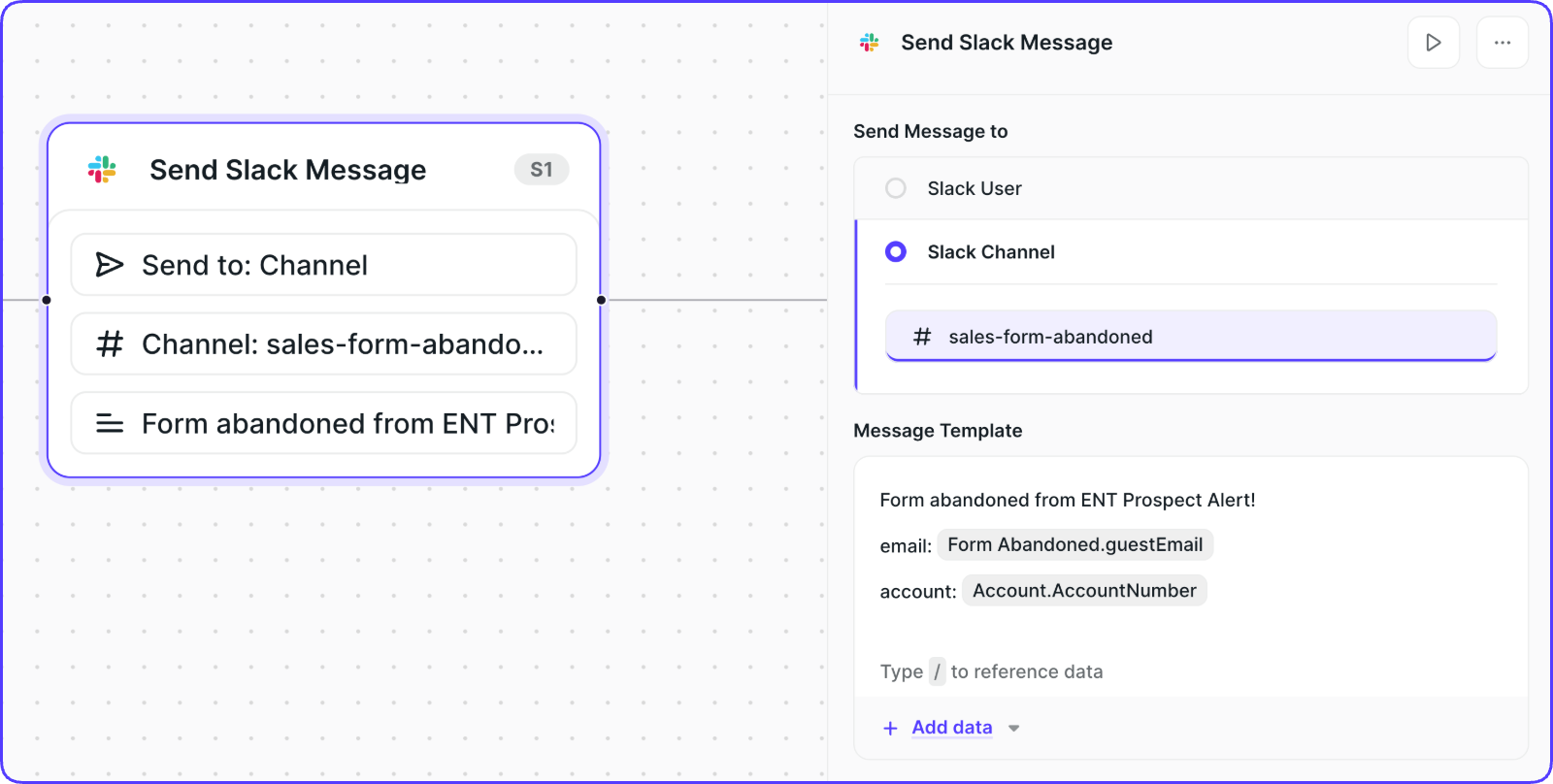
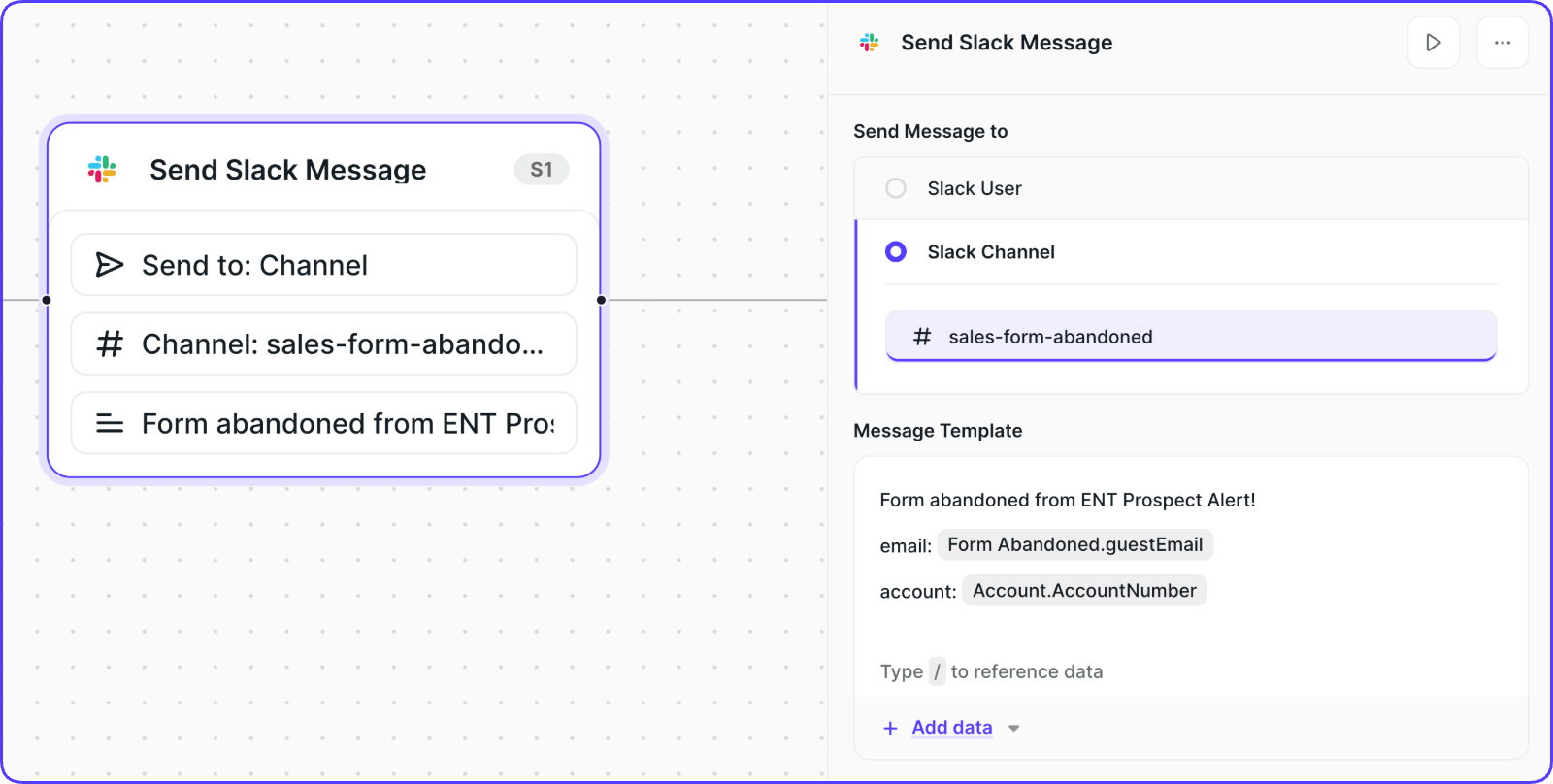
- Add Slack Notification Node: Send messages to dedicated channels like #form-abandoned-ent for Enterprise prospects. Include dynamic details: guest email, account name, and account owner information.
-
FALSE PATH: No action to prevent notification spam
This Flow transforms invisible drop-off into actionable intelligence, enabling reps to reach out while intent remains warm.
Flow 3: Re-engage Cancelled Meetings Automatically
When prospects who booked demos subsequently cancel, they shouldn't be treated as lost causes. The initial booking demonstrates genuine interest, and a narrow window exists for re-engagement before they go cold.
Setup Steps:
-
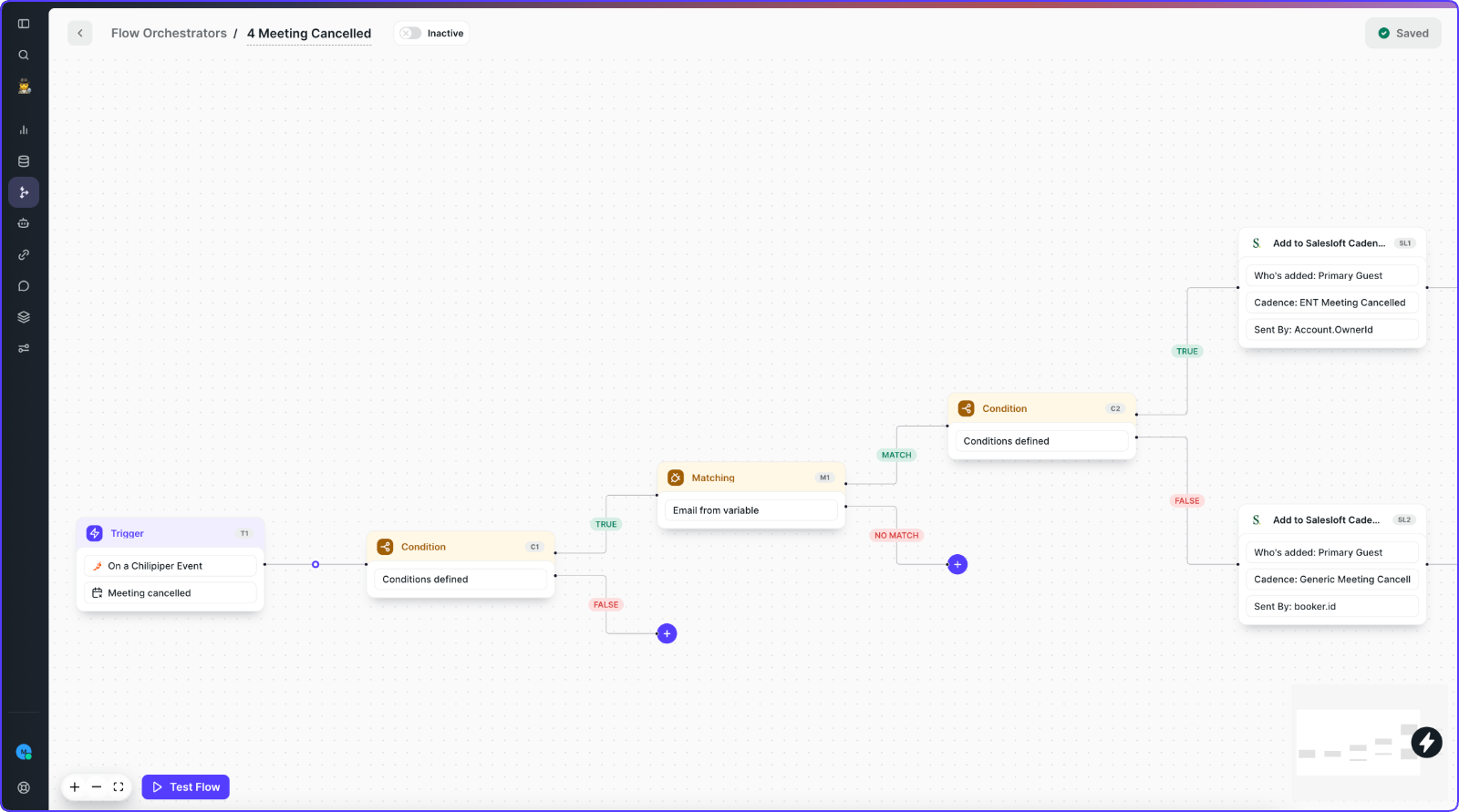
Set the Trigger: Create a new Flow selecting On a Chili Piper Event → Meeting Events → Meeting Cancelled
-
Add a Matching Node: Choose the Primary Guest variable and enable Lead and/or Contact matching in Salesforce to connect cancellations to correct CRM records.
-
Add a Condition Node: Branch based on CRM data. Example: Route Enterprise cancellations (companies with 800+ employees) differently from others using any relevant field—deal stage, industry, account tier, etc.
-
Add the Engagement Action Node:
For Salesloft or Outreach:
- Select Primary Guest from Meeting as the prospect
- Choose your preferred re-engagement Cadence or Sequence
- Set sender to Meeting Assignee for personalization
For Gong Engage:
- Set CRM Prospect ID to Lead and/or Contact from Matching Node
- Select preferred Flow
- Set owner to Assignee or Booker
- Inject the reschedule link using Field Placeholders
-
Add Slack Notification Node: Alert the rep about the cancellation and completed re-engagement action with a message like: "Prospect cancelled the meeting. We added them to [Cadence Name]."
Conclusion
These three Flows address primary re-engagement scenarios: no-shows, cancellations, and abandoned forms. Each requires approximately ten minutes to establish and runs automatically thereafter.
The consistent pattern involves: a Chili Piper signal triggering the Flow, the Matching Node connecting it to your CRM, a Condition routing by account priority, and automatic actions (cadence enrollment, Slack alerts, or both) executing without manual intervention.
Once operational, the framework adapts to additional scenarios—re-engaging prospects whose meetings rescheduled multiple times, alerting leadership when high-tier accounts go dark. The fundamental building blocks remain identical.
Your pipeline isn't just leaking from the top. It's leaking from the middle.
Most teams obsess over generating new leads. More forms, more ads, more content. But the fastest way to recover the pipeline isn't to generate new demand. It's to stop losing the demand you already have.
Think about what happens after a prospect engages with you. They book a meeting and then no-show. They accept a demo and then cancel. They start filling out your form and then leave before submitting. Every one of these is a real buying signal that went cold because nobody followed up fast enough, or at all.
The math is simple. Re-engaging a prospect who already raised their hand is cheaper and faster than finding a new one. But most teams don't have a system for it. The rep finds out about the no-show, manually adds them to a cadence (if they remember), and moves on. The cancelled meeting sits in the CRM with no next action. The abandoned form? Nobody even knows it happened.
Orchestrator fixes this. You can build Flows that fire the moment a signal happens, match the prospect to your CRM, make decisions based on Account data, and take action automatically, whether that's enrolling someone in a re-engagement cadence, alerting the account owner, or notifying leadership.
Here are 3 Flows you can build today. Each one takes about 10 minutes to set up and plugs a specific leak in your pipeline.
Re-engage No-Shows automatically
It's 2:10 PM and that lead never showed up for your demo call at 2:00. Normally your rep will need to manually go to your engagement tool (Gong, Outreach, Salesloft) and trigger a sequence to re-engage the prospect. That's valuable time they could spend researching their next account. Let's give them that time back.
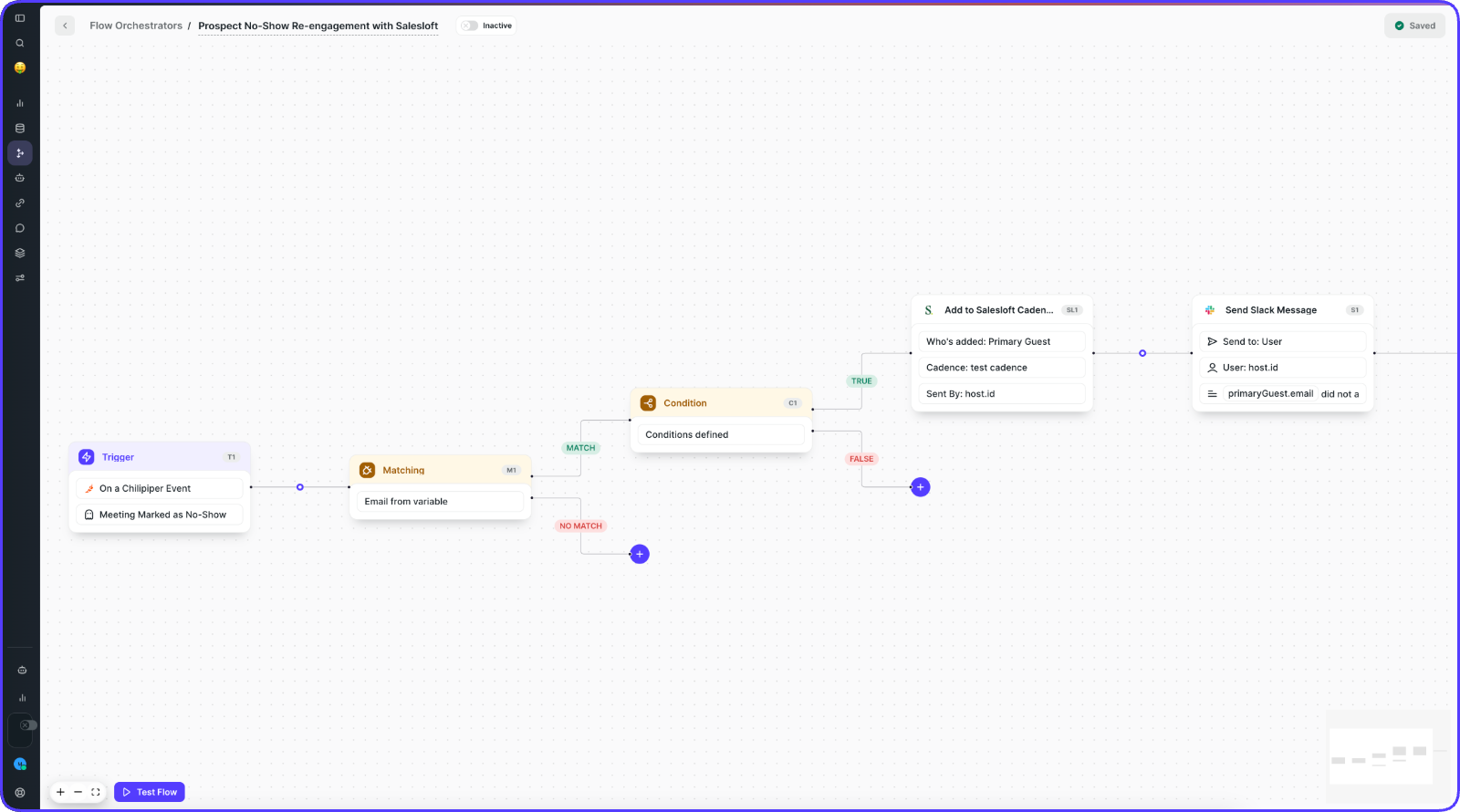
1. Set the Trigger: Create a new Flow and choose On a Chili Piper Event, then select Meeting Events and Meeting Marked as No-Show.
2. Add a Matching Node: This step is optional but strongly recommended. It connects the guest to your CRM so you can branch the Flow using account data. Choose the Primary Guest variable from the Trigger and enable Lead, Contact and/or Account matching in Salesforce.
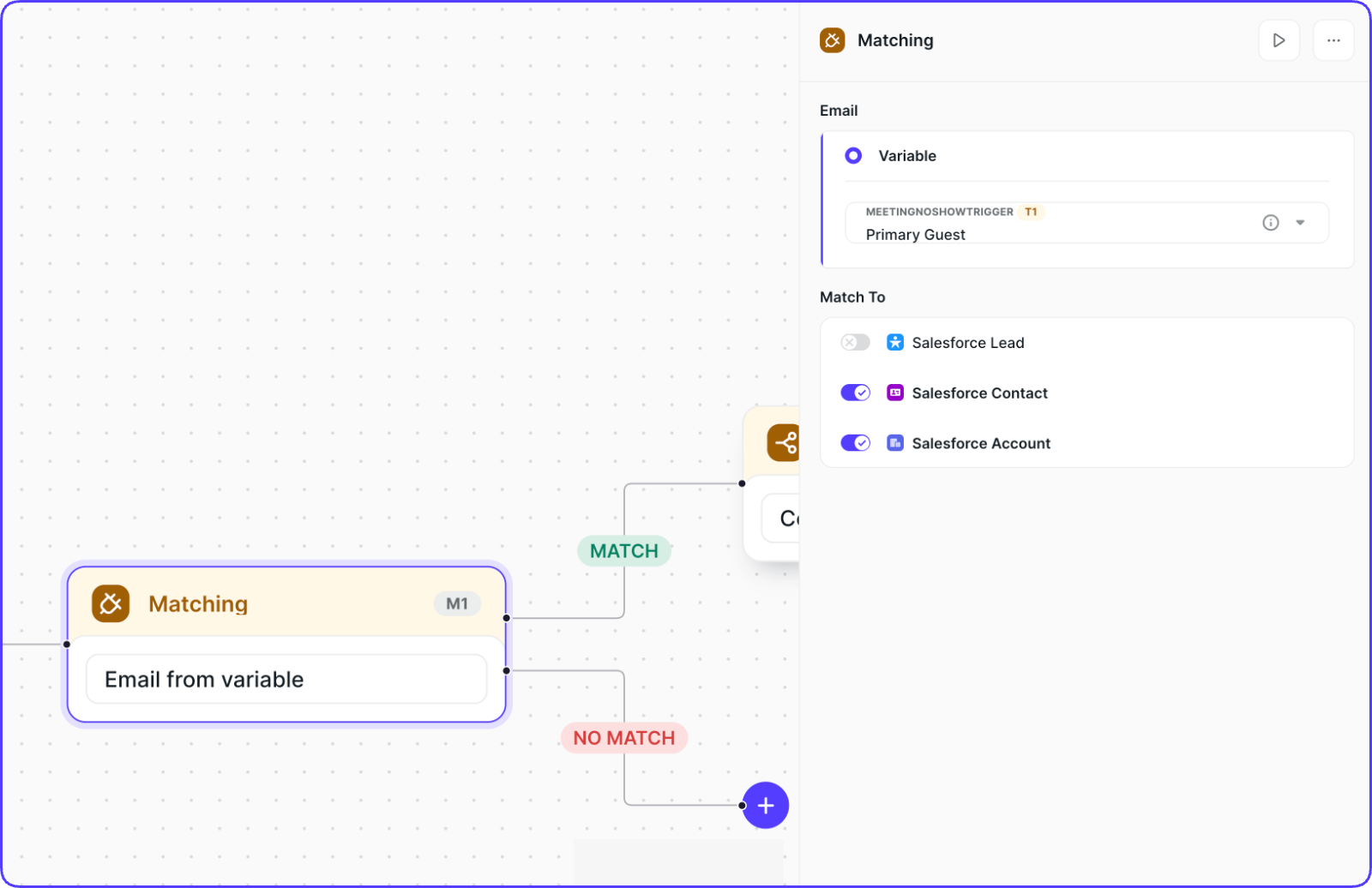
1. Add a Condition Node or Routing Rule (optional): With Matching in place, you can branch based on any CRM field. For example: branch Prospects differently from everyone else. Or branch by assignee, deal stage, headcount, or industry. Use whatever logic fits your GTM motion.
**2. Add the engagement action Node:**This varies depending on having Salesloft, Outreach or Gong Engage
If you use Salesloft or Outreach
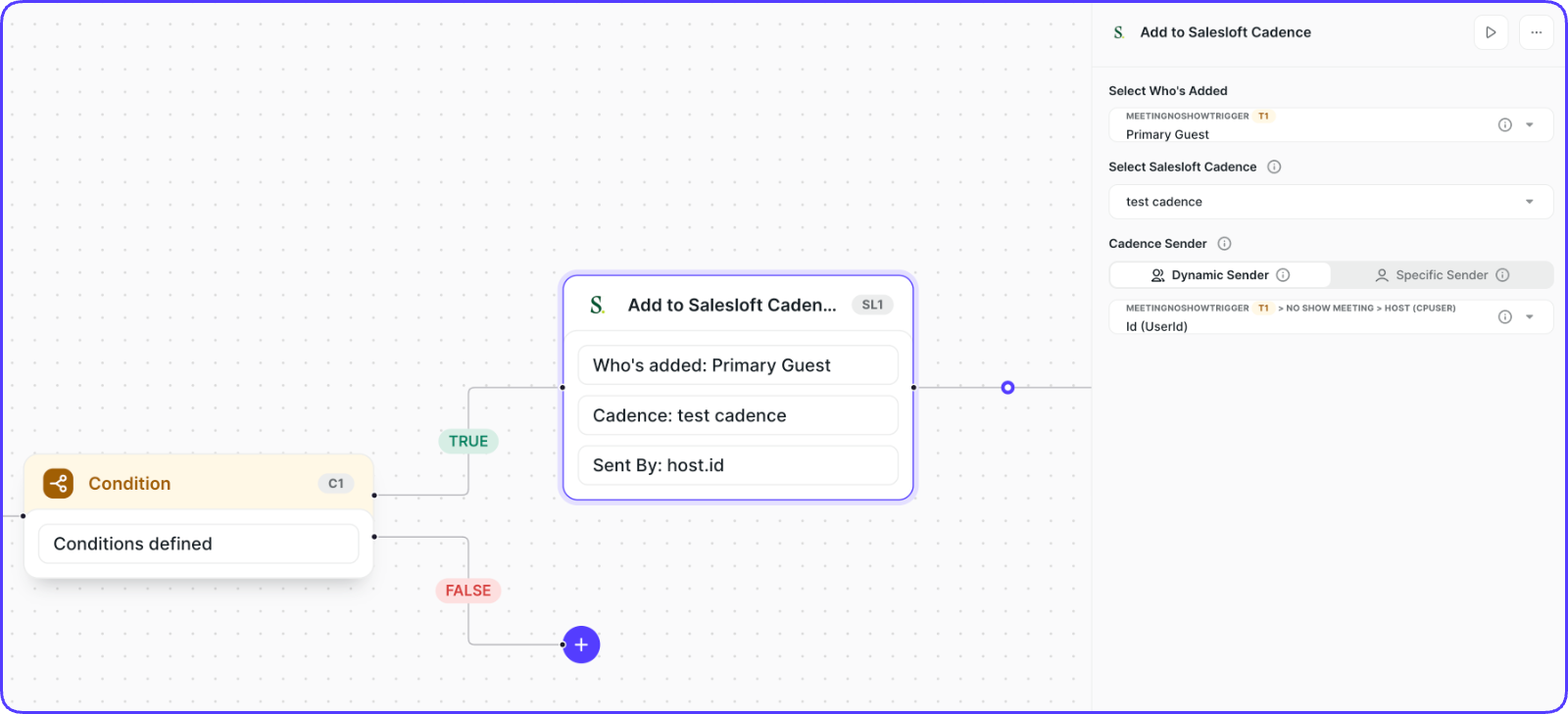
Add the Salesloft or Outreach Node. Select who's added: Primary Guest from Meeting. Choose your preferred re-engagement Cadence or Sequence. For the sender, we recommend the Assignee from the meeting so the follow-up feels personal.
If you use Gong Engage
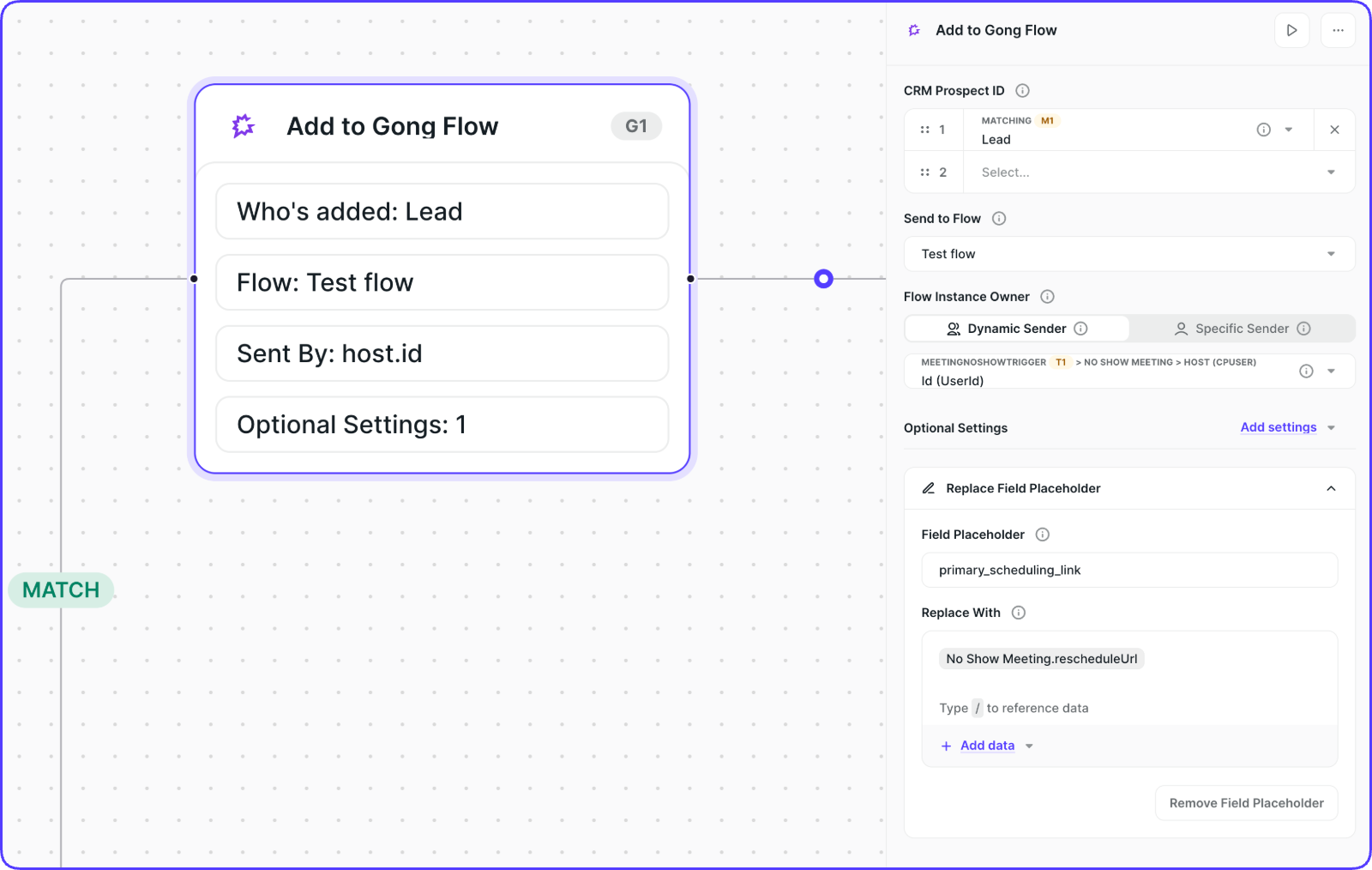
Add the Gong Engage Flow Node. Set the CRM Prospect ID to Lead and/or Contact from the Matching Node. Choose your preferred re-engagement Flow. Set the Flow Instance Owner to the Assignee or Booker.
Pro Tip: Gong lets you replace Field Placeholders with dynamic values. Replace a placeholder like sender.primary_scheduling_link with the reschedule link from the original meeting. This gives the prospect a one-click path back to your calendar, keeping the original opportunity attached.
That's it. Your reps no longer need to manually chase down no-shows. The Flow handles enrollment automatically, and the rep can focus on their next call.
Re-engage Abandoned Forms with instant alerts
A prospect lands on your demo request form, enters their email, maybe a few more fields, and then... leaves. They didn't submit. Someone was interested enough to start filling out the form. They gave you their email. And then something stopped them.
Most teams have zero visibility into form abandonment. The prospect disappears, no one follows up, and that intent evaporates. Orchestrator changes this.
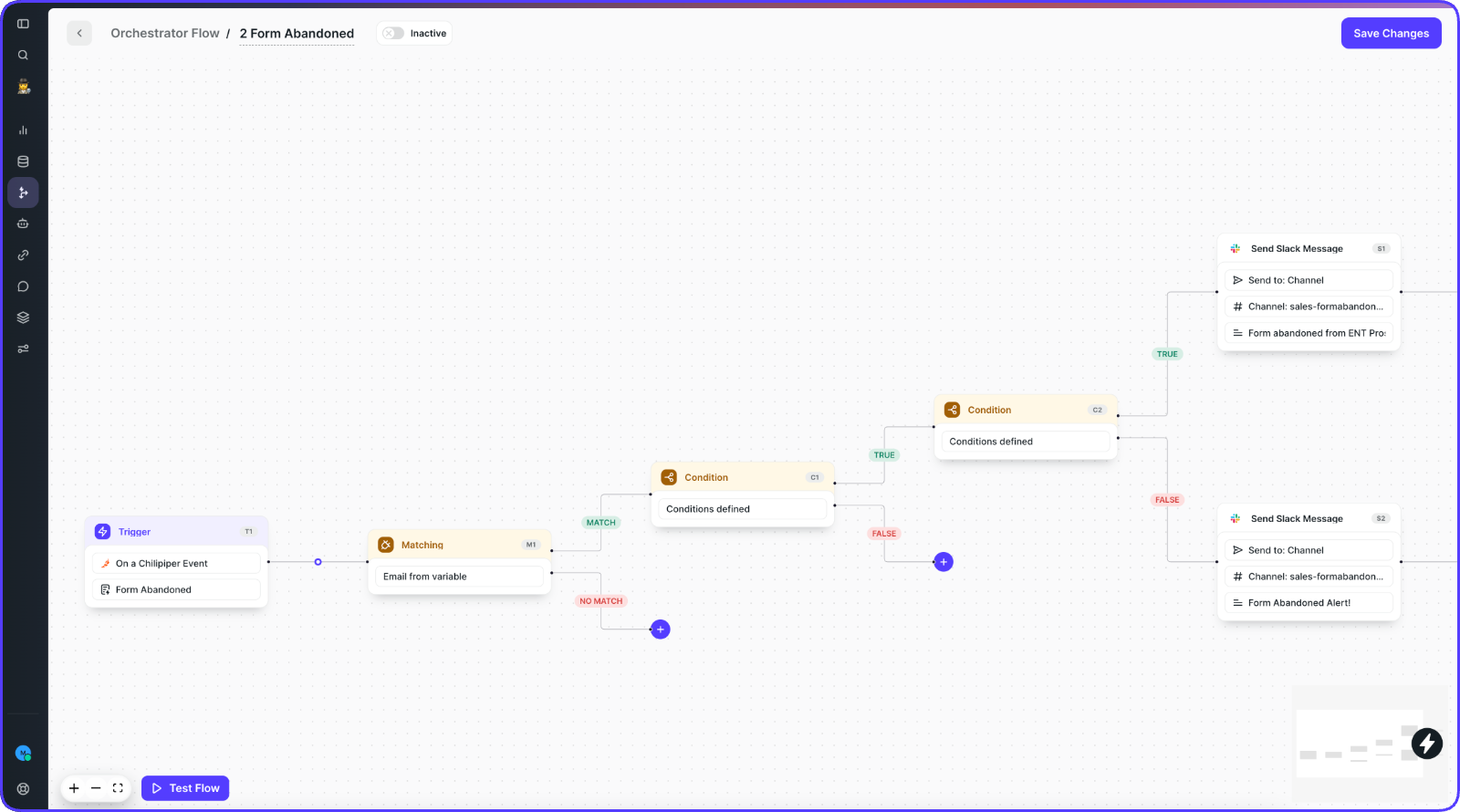
1. Set the Trigger: Create a new Flow and choose On a Chili Piper Event, then select Form Events and Form Abandoned.
2. Add a Matching Node: Choose the Primary Guest variable from the Trigger and enable matching for Lead, Contact, and/or Account in Salesforce. This connects the abandoned form to the right CRM record so your alerts carry account context, not just a random email.
Add a Condition Node: Route alerts based on how important the abandoned form is. In this example, we combine two criteria: Type equals "Prospect" AND Number of Employees is greater than 800. This catches the Enterprise prospects you really don't want slipping through the cracks.
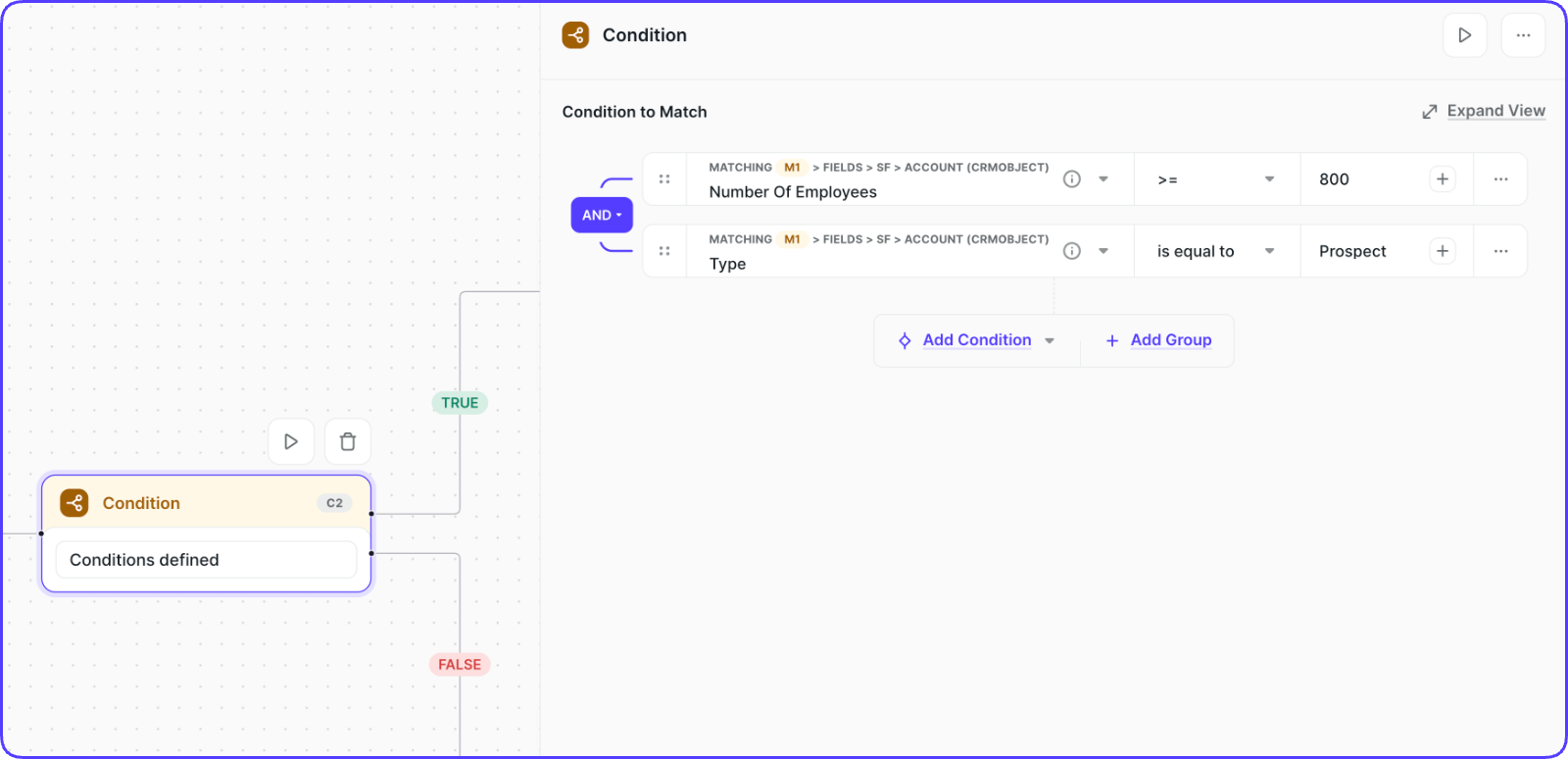
4. TRUE PATH:
**Add Slack Notification Node:**Slack message to the #form-abandoned-ent channel for extra visibility on ENT prospects. For example: "Enterprise Form abandoned alert! {{Guest Email}} from {{Account Name}} abandoned the form before submitting. The Account Owner is already alerted too."
5. FALSE PATH:
- No action, as we’d like to avoid spamming
This Flow turns invisible drop-off into something your team can act on. Instead of losing prospects to form abandonment and never knowing about it, your reps get real-time alerts and can reach out while the intent is still warm.
Re-engage Cancelled Meetings automatically
A prospect accepted a demo, blocked the time, and then cancelled. Most teams treat this like a dead lead. The rep sees the calendar update, sighs, and moves on. But a cancelled meeting is not a lost cause. The prospect was interesting enough to book. You have a narrow window to re-engage before they go cold.
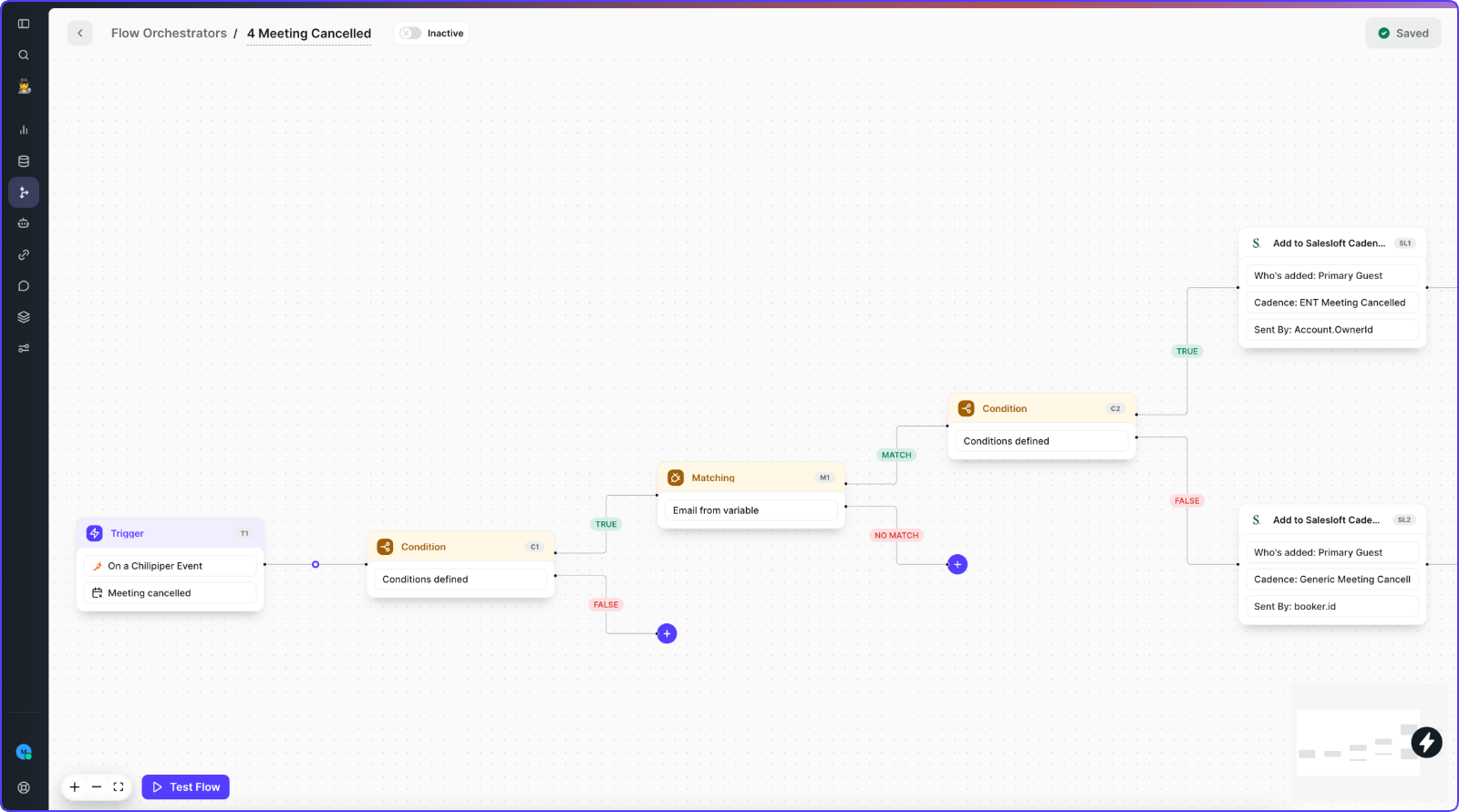
1. Set the Trigger: Create a new Flow and choose On a Chili Piper Event, then select Meeting Events and Meeting Cancelled.
**2. Add a Matching Node:**Choose the Primary Guest variable from the Trigger, and enable Lead and/or Contact matching in Salesforce. This connects the cancellation to the right CRM record.
3. Add a Condition Node: Branch based on CRM data. In this example, we're checking if the company has over 800 employees to treat Enterprise cancellations differently. You can use any field: deal stage, industry, account tier, you name it.
**4. Add the engagement action Node:**This varies depending on having Salesloft, Outreach or Gong Engage
If you use Salesloft or Outreach
Add the Salesloft or Outreach Node. Select who's added: Primary Guest from Meeting. Choose your preferred re-engagement Cadence or Sequence. For the sender, we recommend the Assignee from the meeting so the follow-up feels personal.
If you use Gong Engage
Add the Gong Engage Flow Node. Set the CRM Prospect ID to Lead and/or Contact from the Matching Node. Choose your Flow and set the owner to the Assignee or Booker. Use Gong's Field Placeholders to inject the reschedule link from the original meeting.
**1. Add Slack Notification Node:**So the Rep knows what happened and what action was already taken. Send to the meeting Assignee with a message like: "{{Primary Guest}} cancelled the meeting. Don't worry, we added them to {{Cadence Name}} for you."
The rep gets a Slack notification, sees the context, and knows the re-engagement is already running. No manual work. They can focus on their next call instead of chasing down a cancellation.
Stop the leaks, keep the pipeline moving
These three Flows cover the most common re-engagement scenarios: no-shows, cancellations, and abandoned forms. Each one takes minutes to set up and runs automatically from that point forward.
The pattern is the same across all three: a Chili Piper signal fires, the Matching Node connects it to your CRM, a Condition lets you route by account priority, and the action (enrollment in a cadence, Slack alert, or both) happens without anyone lifting a finger.
Once these are running, you can adapt the pattern to anything. Re-engage prospects whose meetings were rescheduled three times. Alert leadership when a high-tier account goes dark. The building blocks are the same.
Ready to build your first Flow? Head to Orchestrator and start with the one that matches your biggest pipeline leak.
Let your reps spend their time selling instead of researching, and you’ll see the quality of your meetings improve fast.
Current customer and want to set it up? Click here to see how to do it.
In the meantime, stay spicy! 🔥