Office Hours and Group Demos
The Situation
You want to establish daily Office Hours or Group Demos that allow people to connect with your team members on demand.
How to Set Up Office Hours with Chili Piper
1. Create Your Office Hours Meeting Type
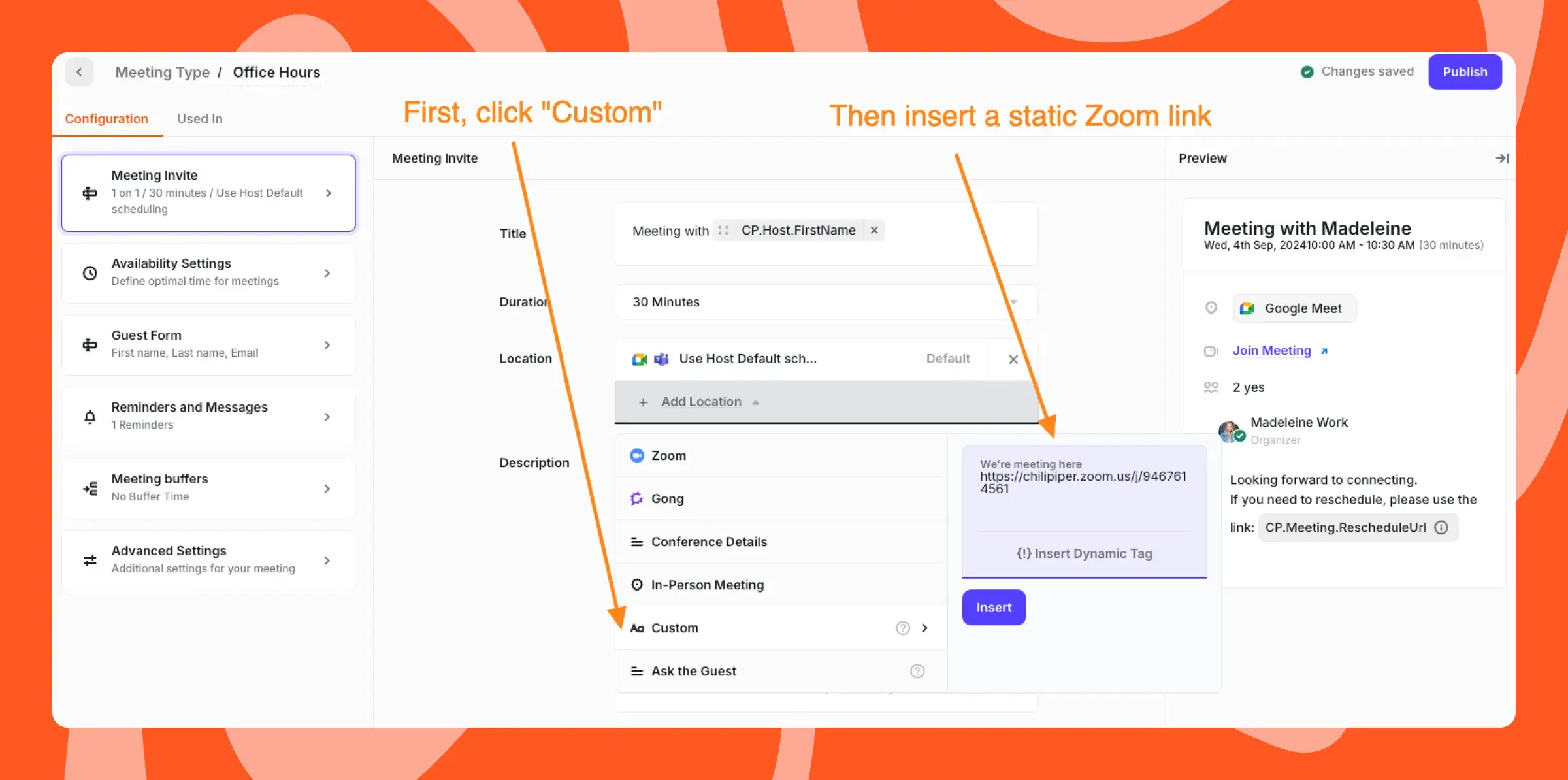
Navigate to your meeting types section to establish a new Office Hours meeting type. Rather than using dynamic meeting links, select "Custom" and insert a static Zoom or Google Meet link that remains consistent across all sessions.
2. Set Availability Settings
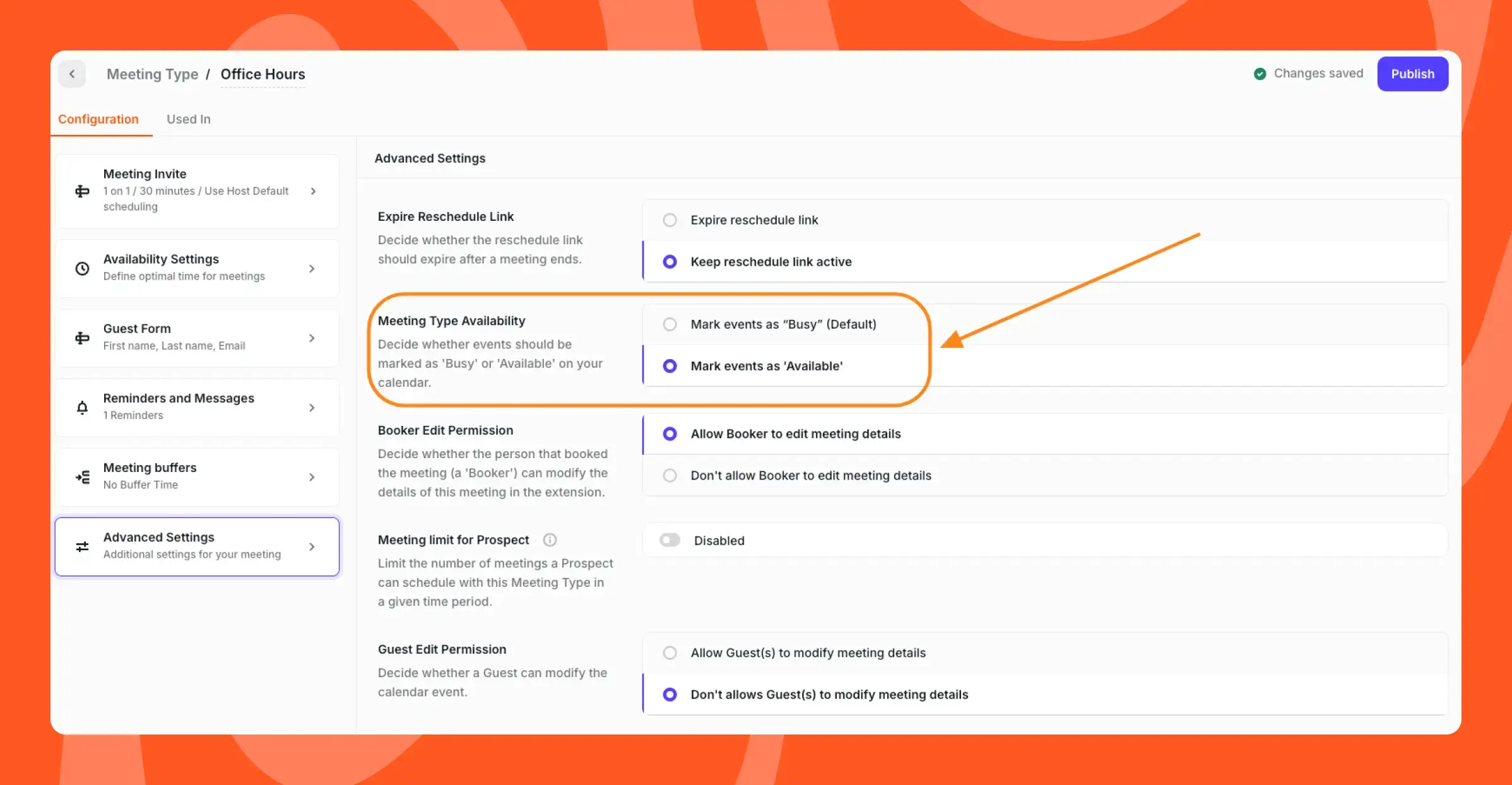
Mark the Meeting Type Availability as "Available." This critical step enables multiple customers and prospects to book during the same time slot, allowing you to track all intended attendees.
3. Set Availability Schedule for End Users
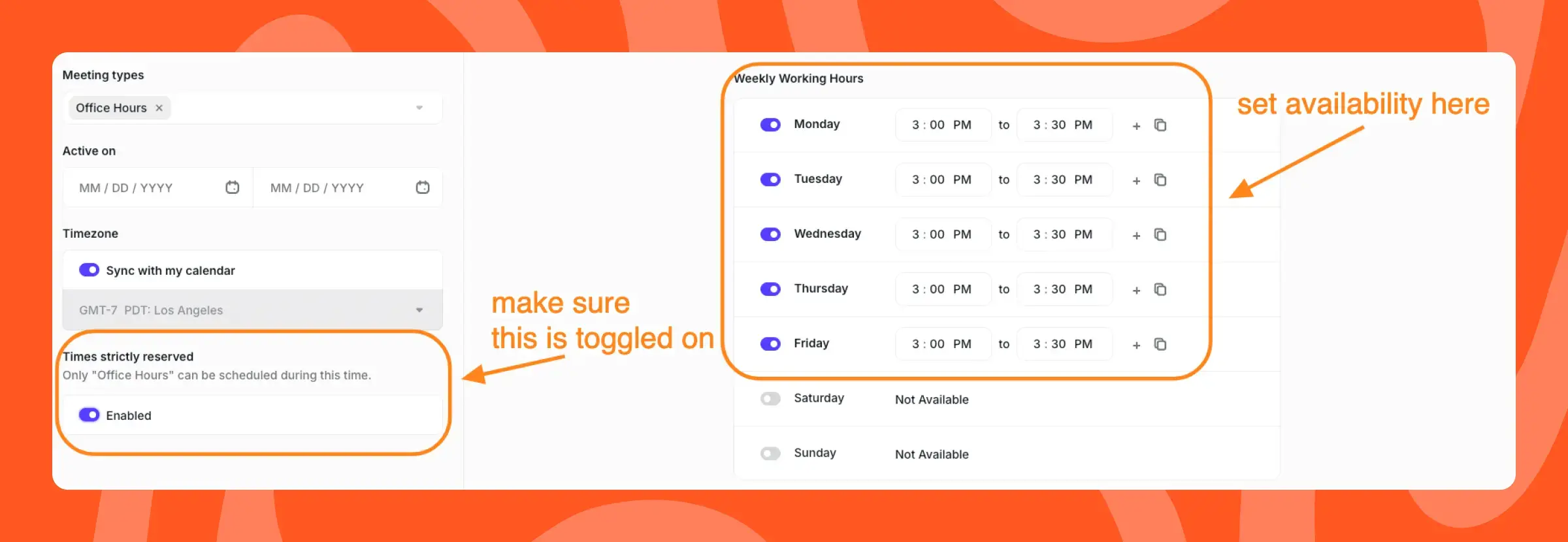
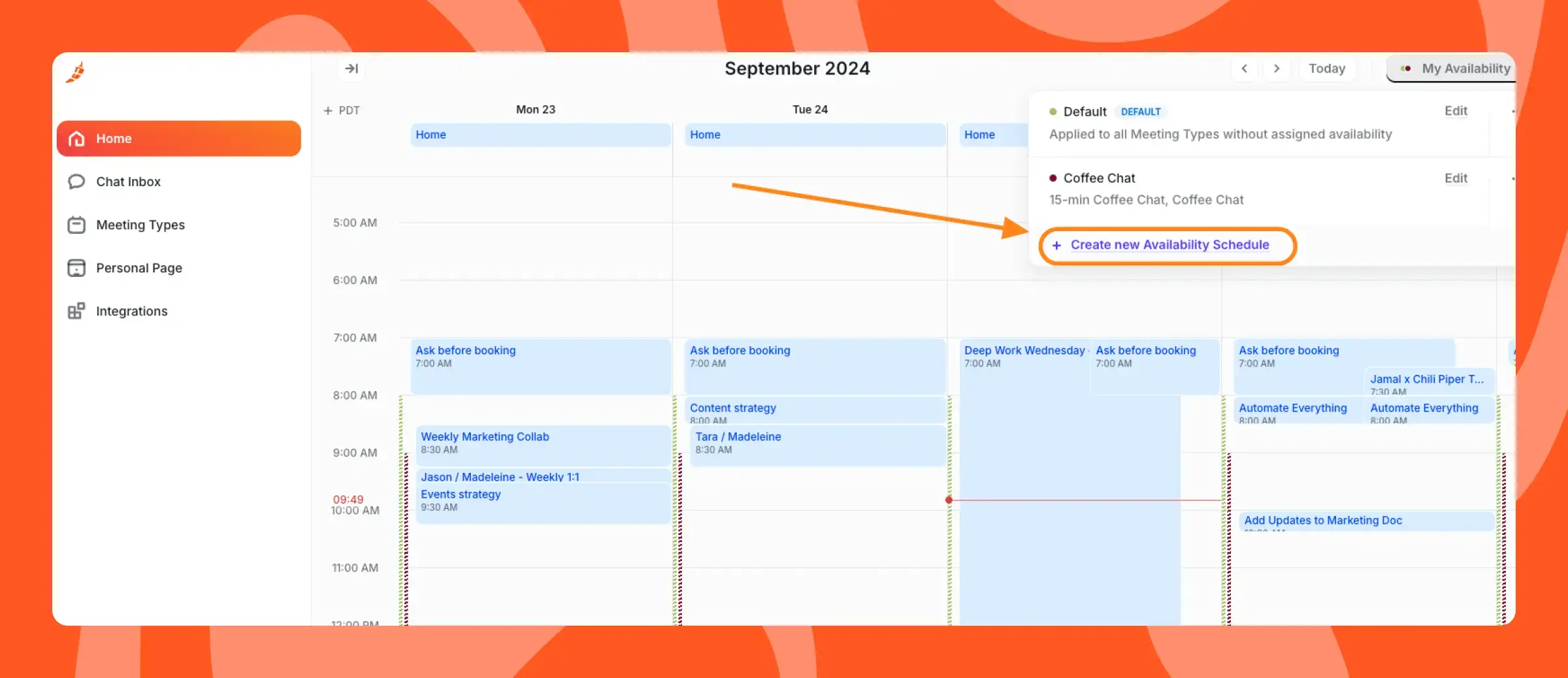
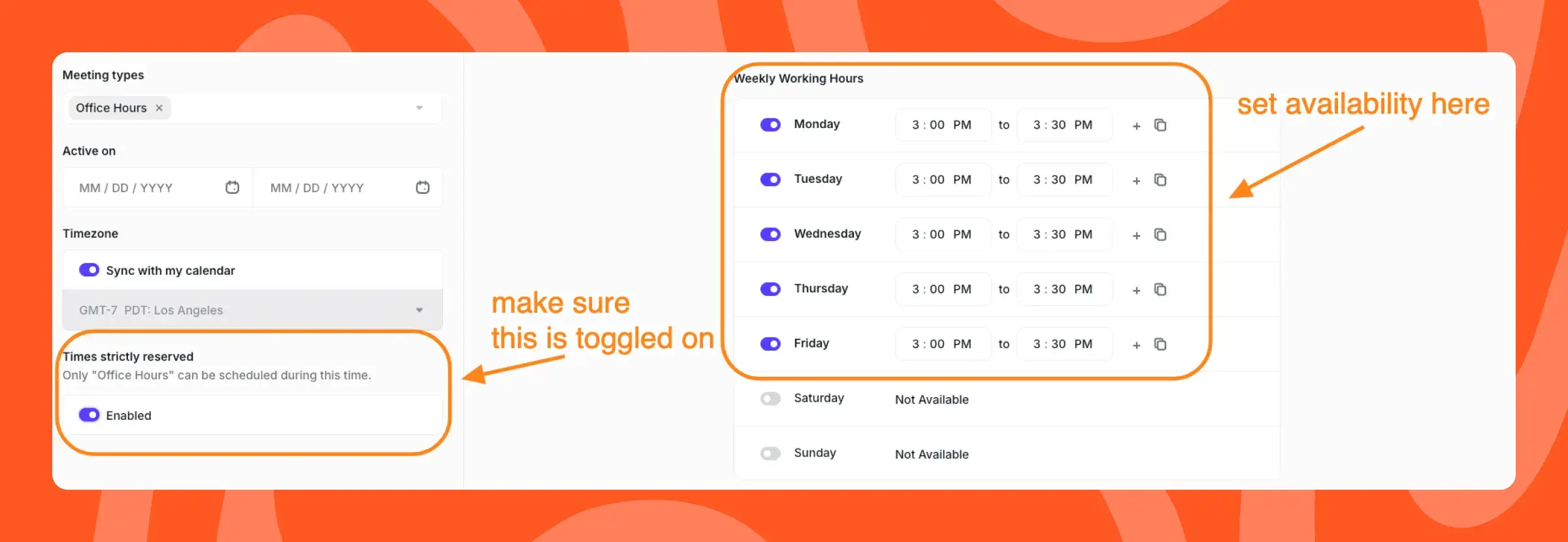
Create an Office Hours availability schedule that restricts when end users can access this meeting type:
- Select "office hours" from the Meeting Type dropdown
- Define weekly working hours (example: 3:00 to 3:30 PM on working days)
- Toggle "Times Strictly Reserved" to ensure only Office Hours bookings occur during this window
4. Share With Customers
Copy your scheduling link and distribute it to customers so they can begin booking Office Hours sessions.
Here’s your situation:
You want to set up daily Office Hours or a Group Demo that folks can join if they want to talk to a member of your team.
Our friend Robb Clark over at RB2B was having a similar problem, which inspired me to write this post:
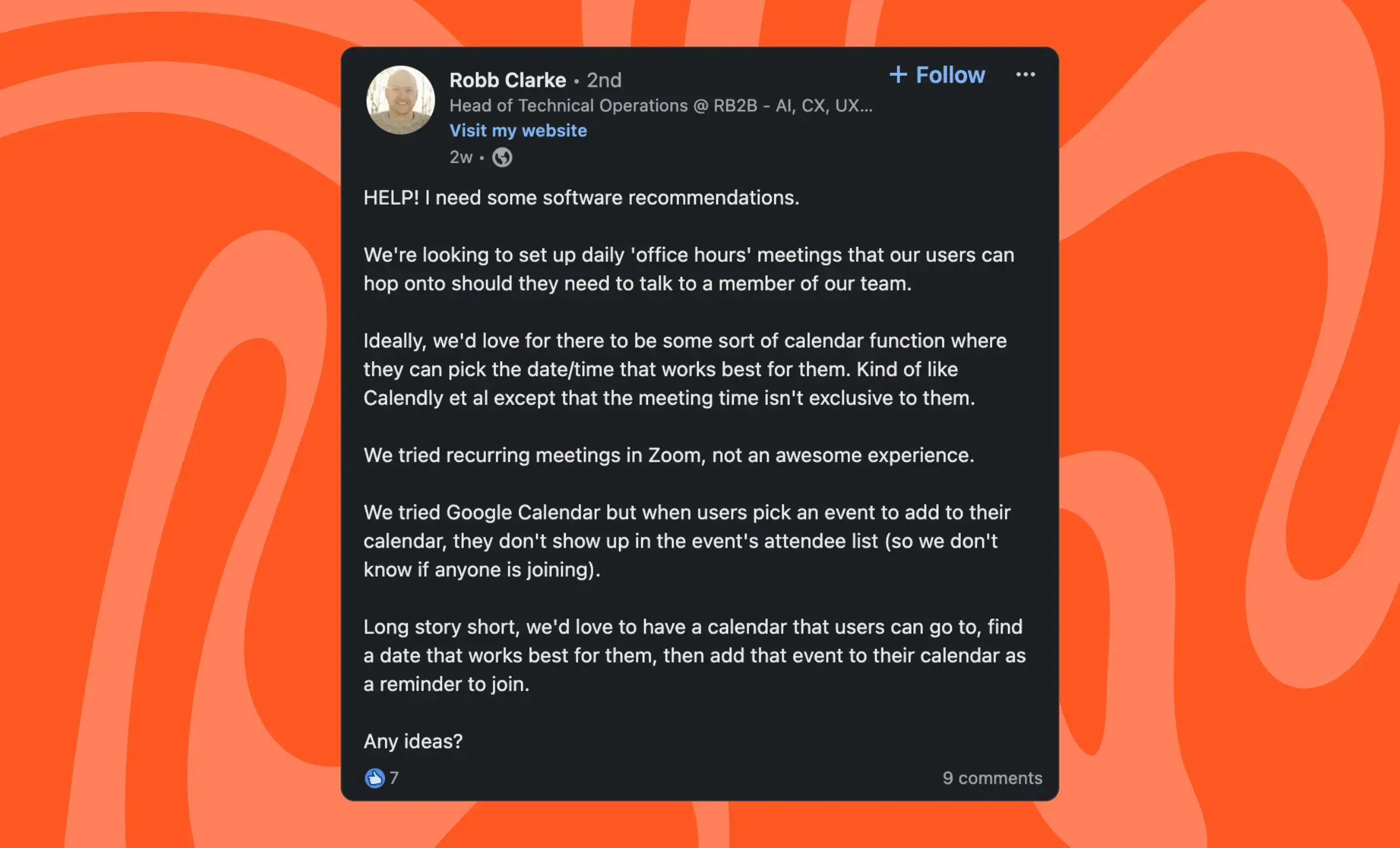
Let’s dive in, shall we?
How to set up Office Hours with Chili Piper
Let’s start with the Admin experience
- Create your Office Hours Meeting Type
First, you’re going to want to head over to your meeting types to create your Office Hours meeting type:
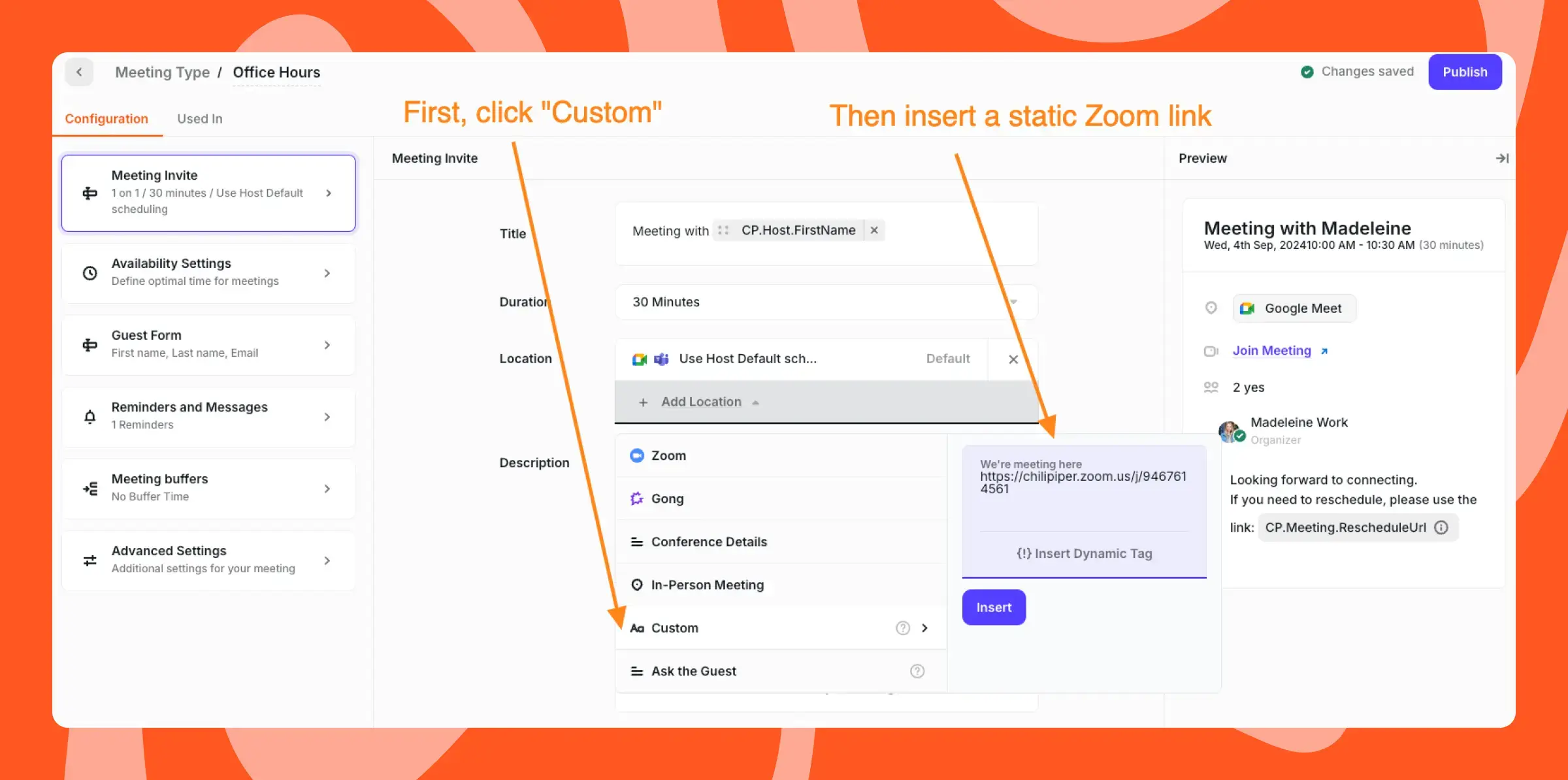
Rather than defaulting to the dynamic Zoom or Google Meet code via the integration, click “Custom” and then insert a static Zoom link — so it’s the same link every time.
- Set Availability Settings
Then, **we want to mark the Meeting Type Availability as Availabile.**This is key.
By doing so, multiple customers/prospects will be able to book during that time — and you’ll be able to see everyone who intends to show up.
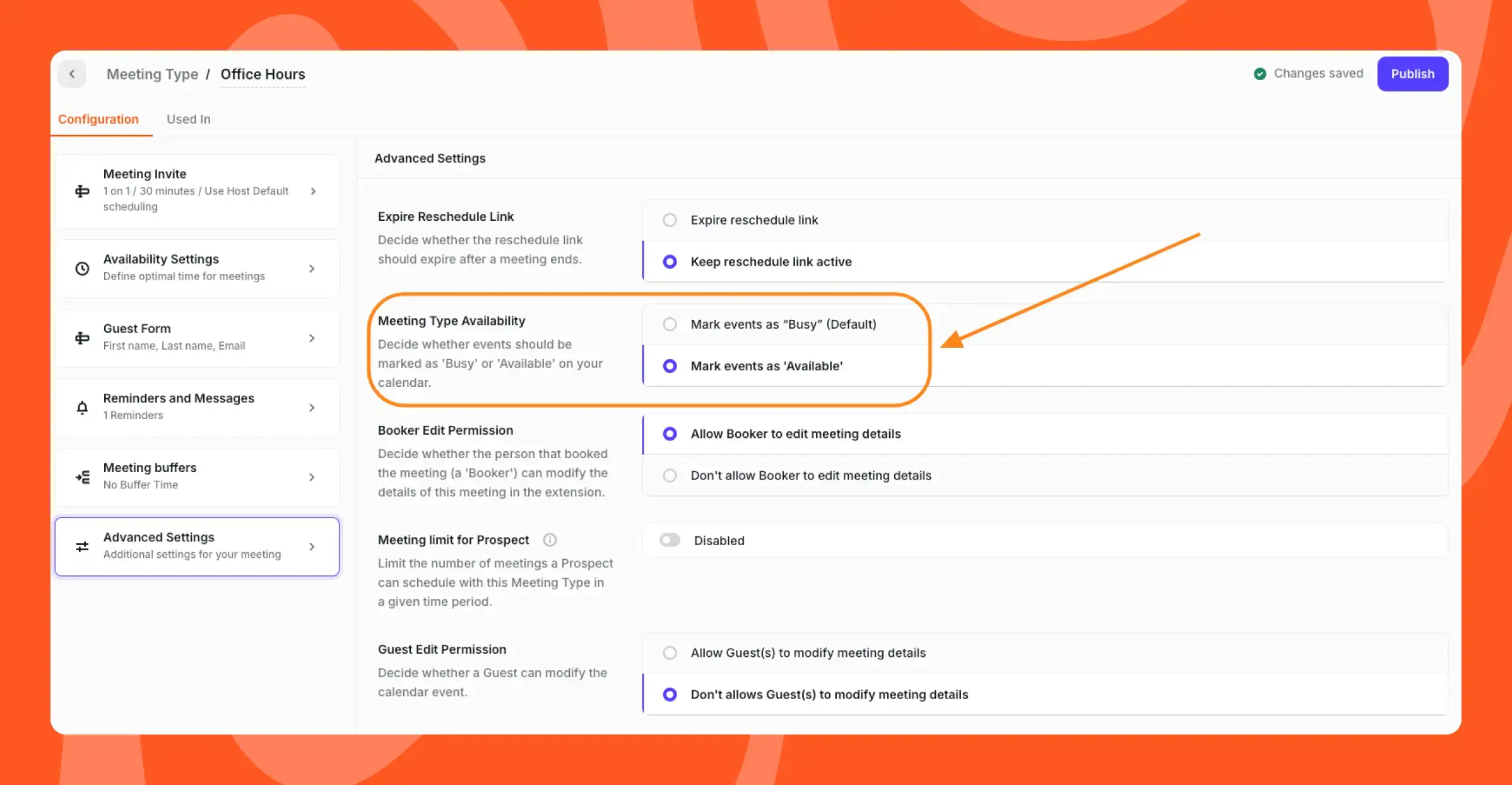
- Set Availability Schedule for the End User
Next, you’ll want to create an Office Hours availability schedule for end users — so they can only receive the Office Hour meeting type during a certain time.
First, click “create a new availability schedule”:
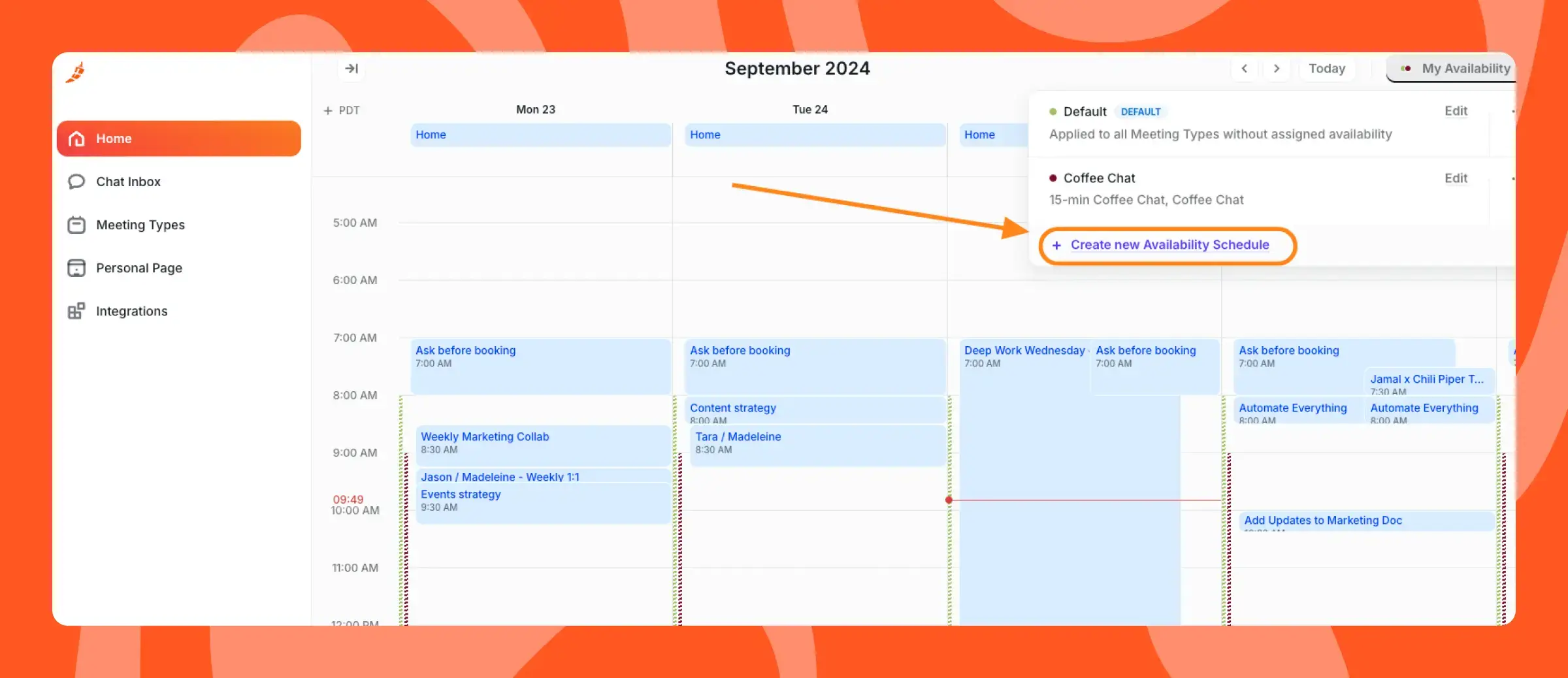
Then, set up an availability schedule for your new Office Hours meeting type.
There are a few things you’ll need to do to make sure this is set up correctly:
-
Select “office hours” from the Meeting Type dropdown
-
Set your availability under the Weekly Working Hours — in this example, I’ve set availability for working days between 3:00 to 3:30 PM
-
Toggle on “Times Strictly Reserved” — so only Office Hours can be scheduled during this time
- Share with your customers
Copy your link and share with customers — so they can start booking office hours.
What’s next?
If you want to try this spicy use case yourself, learn more about ChiliCal (and get a free trial) here.
Also if you’re not doing so already, be sure to follow Jonathan on LinkedIn — he shares spicy Chili Piper tips and tricks regularly.
In the meantime, stay spicy 🌶️