How to Turn Your Event Leads Into Sales Opportunities
Overview
Managing event leads effectively is critical for converting prospects into sales opportunities. Without a clear process, high-quality leads often slip through the cracks. This article outlines how to automate lead routing, assignment, and follow-up using Distro.
The Challenge
Tracking event leads and ensuring account executives follow up consistently remains difficult for many organizations. Without structured processes, prospects are lost and deals fail to materialize.
The Solution: Distro's Three-Step Process
Step 1: Collect and Import Leads
Gather leads from multiple sources including:
- Booth scans
- Event attendees
- Webinar sign-ups
- Other interested prospects
Import these leads into your system (Salesforce or marketing platform) and configure the appropriate field to trigger Distro workflows.
Example: Set Lead Source = Trade Show to activate routing for trade show attendees.
Step 2: Add an Entry Rule
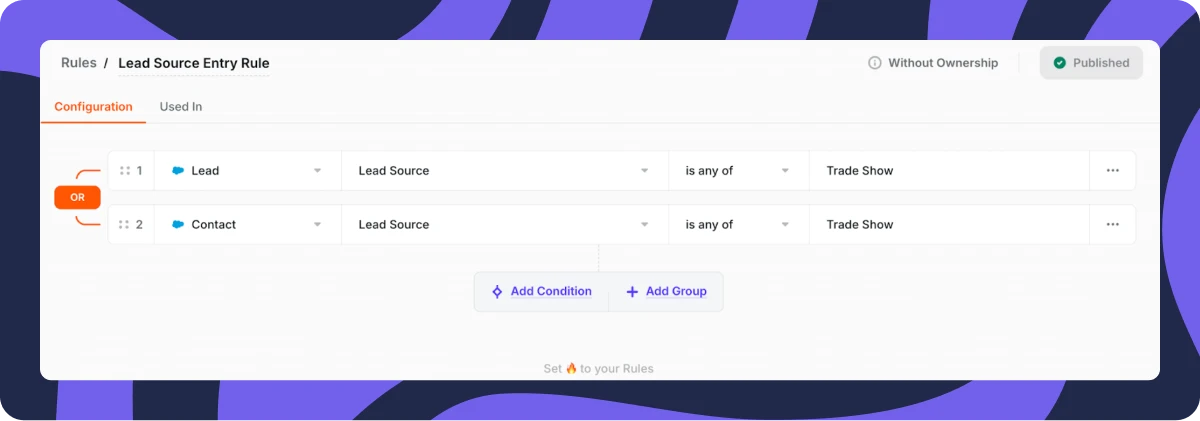
Define criteria that determine which leads enter the workflow. Entry rules ensure only qualified leads matching specific characteristics are processed.
Example: Route only leads or contacts originating from trade shows through the system.
Step 3: Match and Merge Leads Automatically
Distro prevents duplicates and ensures proper assignment across three scenarios:
Lead matches existing Contact: Auto-convert the lead and assign to the Contact owner, maintaining continuity.
Lead already exists as a Lead record: Automatically merge to prevent duplicates.
Lead matches existing Account: Auto-convert into a Contact under that Account and assign to the Account owner.
Two Options for Continued Automation
Option 1: Automate Next Steps for Matched Leads
Once properly assigned and matched, trigger automatic actions:
- Add leads to Salesforce campaigns
- Create follow-up tasks for assigned sales representatives
- Add leads to outreach sequences or cadences
- Send notifications via Slack or email
- Set follow-up deadlines (SLAs) with escalation alerts
Option 2: Route Leads Without Existing Matches
For new leads without matching records, establish routing rules based on:
- Country
- Company size
- Segment
- Revenue
- Custom territory fields
Assign via round-robin rotation or direct assignment to specific representatives. These leads then follow identical automation workflows as matched leads.
The Result
Now every lead from your event is handled automatically. Accounts are created, reps are notified, follow-up tasks are ready, SLAs are set, and prospects are in outreach sequences.
This streamlined approach eliminates manual work and ensures no opportunities are overlooked.
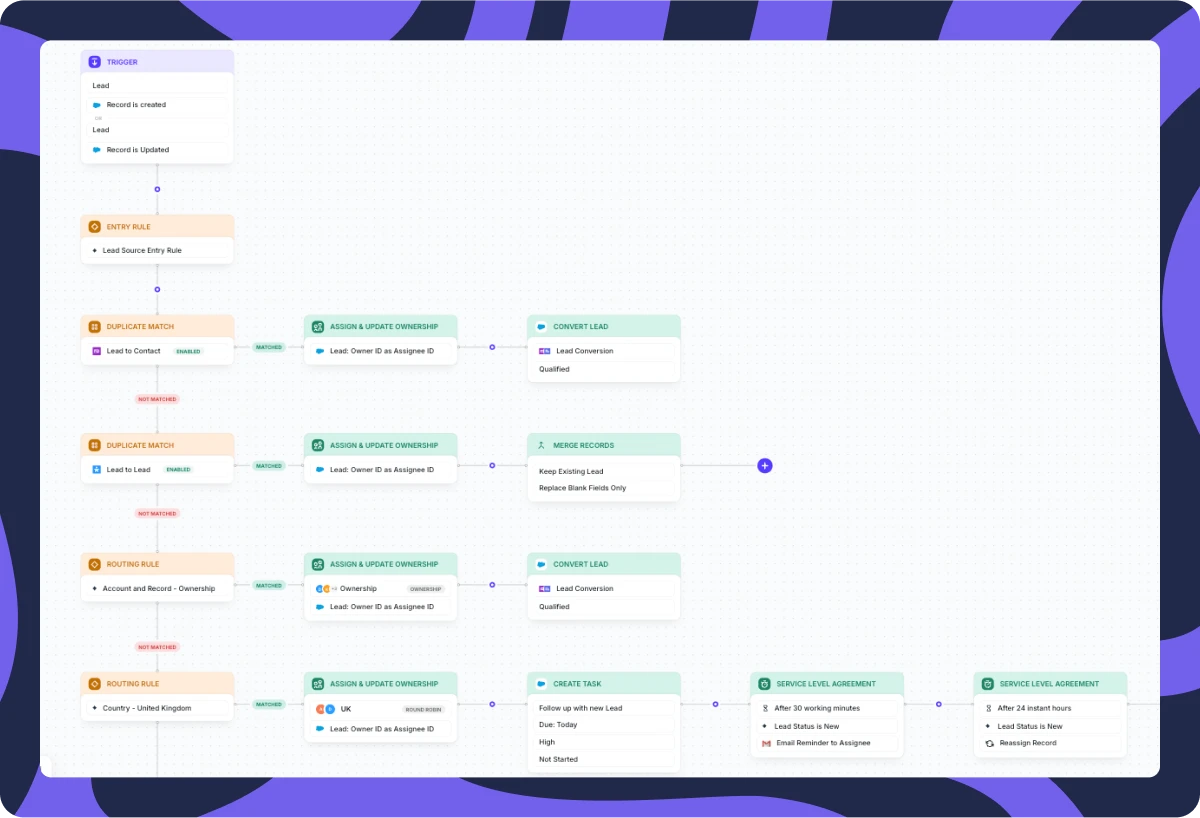
Tracking event leads and making sure AEs follow up is often a challenge. Without a clear process, great prospects slip away and deals are lost. So, how can you make sure every lead gets the follow-up it deserves, fast and without the chaos?
Imagine this: The lead goes straight to the AE who owns the account. It’s linked right away to the right company in your system, and a sales opportunity is created - ready for immediate follow-up.
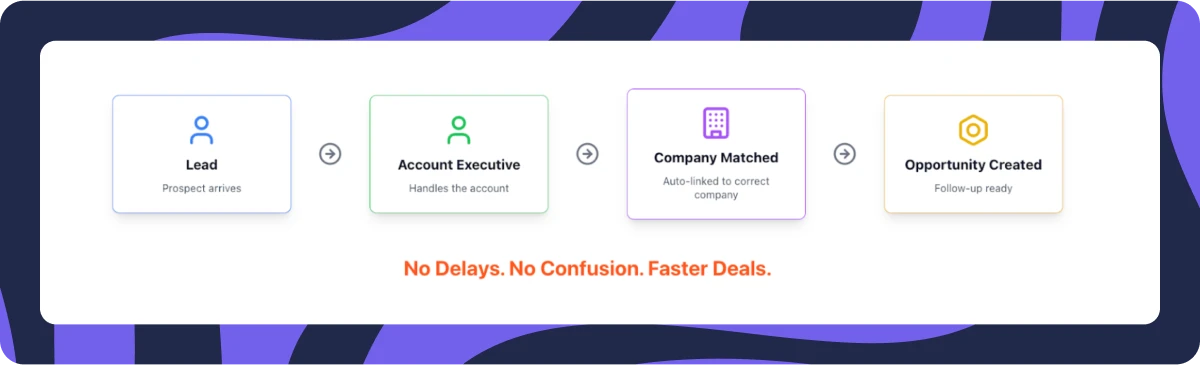
That’s where Distro comes in, so you can keep your follow-up fast, organized, and automatic. Here’s what you can do with Distro:
-
Set follow-up deadlines (SLAs) to make sure every lead gets a quick response.
-
Merge duplicates to keep your lists clean.
-
Add leads to sequences for automatic email and call follow-ups.
-
Create Salesforce tasks to remind your sales team.
-
Drop leads into marketing campaigns.
Let’s walk through what this process looks like.
Route, Assign, and Convert with Distro in 3 Steps
Step 1: Collect and Import Leads
First, gather your leads: booth scans, event attendees, webinar sign-ups, anyone who showed interest. Next, import them into your system, like Salesforce or a marketing tool. Just make sure the right field is set to trigger Distro.
Example: For trade show leads, set Lead Source = Trade Show to route them correctly.
That’s it! Once a lead is created or updated, Distro kicks off your workflow automatically.

Step 2: Add an Entry Rule
The trigger runs when a lead is created or updated, but the entry rule ensures only leads that meet specific criteria, such as coming from certain sources, are processed. You can customize this to fit your needs.
For example, here we define our entry rule as a lead or contact coming from a trade show:
Step 3: Match and Merge Leads Automatically
Now that the right leads are flowing through the router, the next step is making sure they’re properly matched. This prevents duplicates, keeps your CRM clean, and ensures the right sales rep gets the lead without extra manual work.
Here’s how Distro handles each case:
If the lead matches an existing Contact → The new Lead is auto-converted and assigned to the Contact owner, so the right AE keeps control.
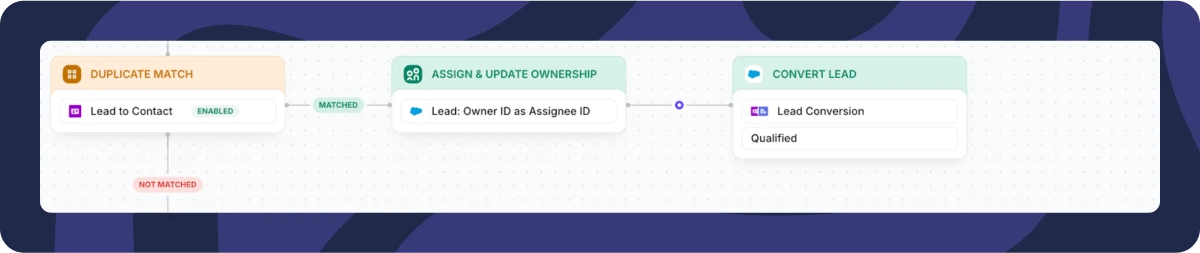
If the lead already exists in your system as a Lead → It’s automatically merged, avoiding duplicate records.
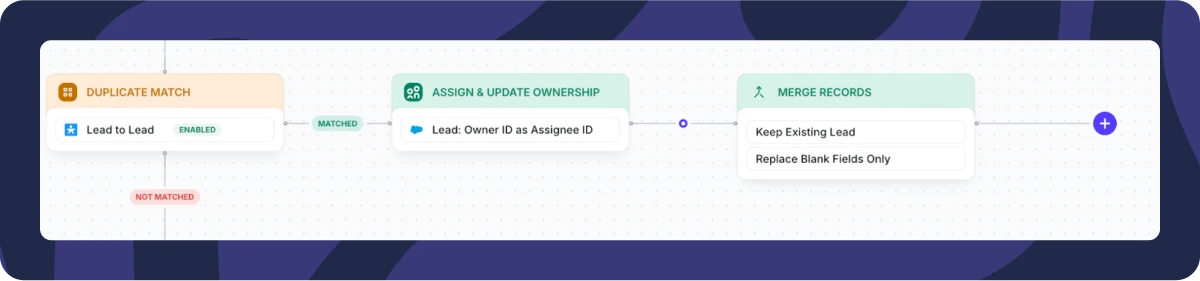
If the lead matches an existing Account → This is where it gets even better. The Lead is auto-converted into a Contact under that Account and assigned to the Account owner, ensuring continuity in the sales process.

From there, we’ve got 2 options.
2 options to keep leads moving automatically
1) automate the next steps if your leads have been properly assigned and matched
It’s time to ensure your leads don’t just sit in the system. With Distro, you can automatically trigger key actions to keep deals moving and ensure no lead gets ignored.
Here are examples of the next steps you can automate:
-
Add the lead to the correct Salesforce (SFDC) campaign so marketing and sales teams stay aligned.
-
Create a follow-up task for the assigned AE or BDR, so they know exactly what to do next.
-
Add the lead to an outreach sequence or Salesloft (cadence) to keep the engagement going.
-
Send instant notifications via Slack or email to alert the assigned rep.
-
Set a follow-up deadline (SLA), if the AE or BDR doesn’t act in time, an alert is sent, or the lead is reassigned to another team through round-robin.
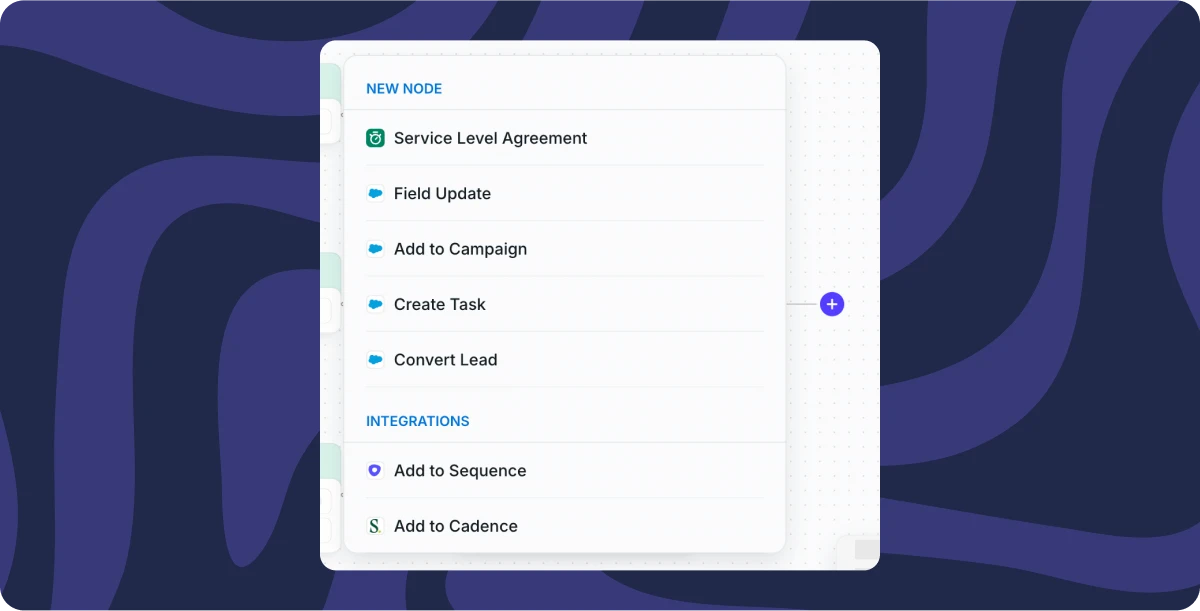
With these automations in place, every lead gets the attention it deserves, and no sales opportunity is left behind.
2) routing leads with no existing matches
If a lead doesn’t match an existing record, that’s where your standard routing rules come into play. Instead of letting these leads sit idle, you can choose to automatically assign them based on your team’s structure and criteria.
You can route leads based on:
-
Country
-
Company size
-
Segment
-
Revenue
-
Any other field that aligns with your sales territories
From there, you can assign leads in a round-robin rotation or send them directly to a specific sales rep.
This method is far easier than using Salesforce (SFDC) assignment rules or marketing automation tools, making sure leads are handled quickly and fairly.
Once assigned, these leads follow the same process:
-
Added to the correct SFDC campaign
-
Follow-up task created for the AE or BDR
-
Added to an outreach sequence/ SalesLoft cadence
-
Slack or email notification sent to the assigned rep
-
Follow-up deadline (SLA) enforced, if missed, an alert is sent, or the lead is reassigned
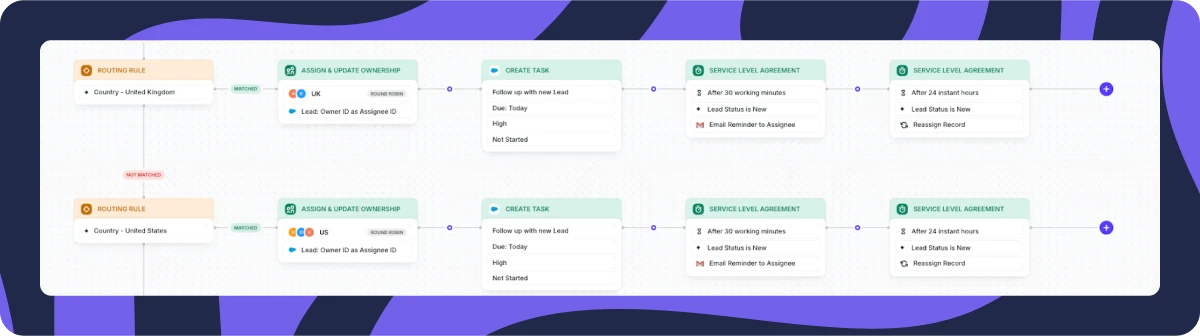
Now every lead from your event is handled - automatically. Accounts are created, reps are notified, follow-up tasks are ready, SLAs are set, and prospects are in outreach sequences. Nothing slips through the cracks.
The result? Faster follow-ups, no missed opportunities, and a smoother path from lead to deal.
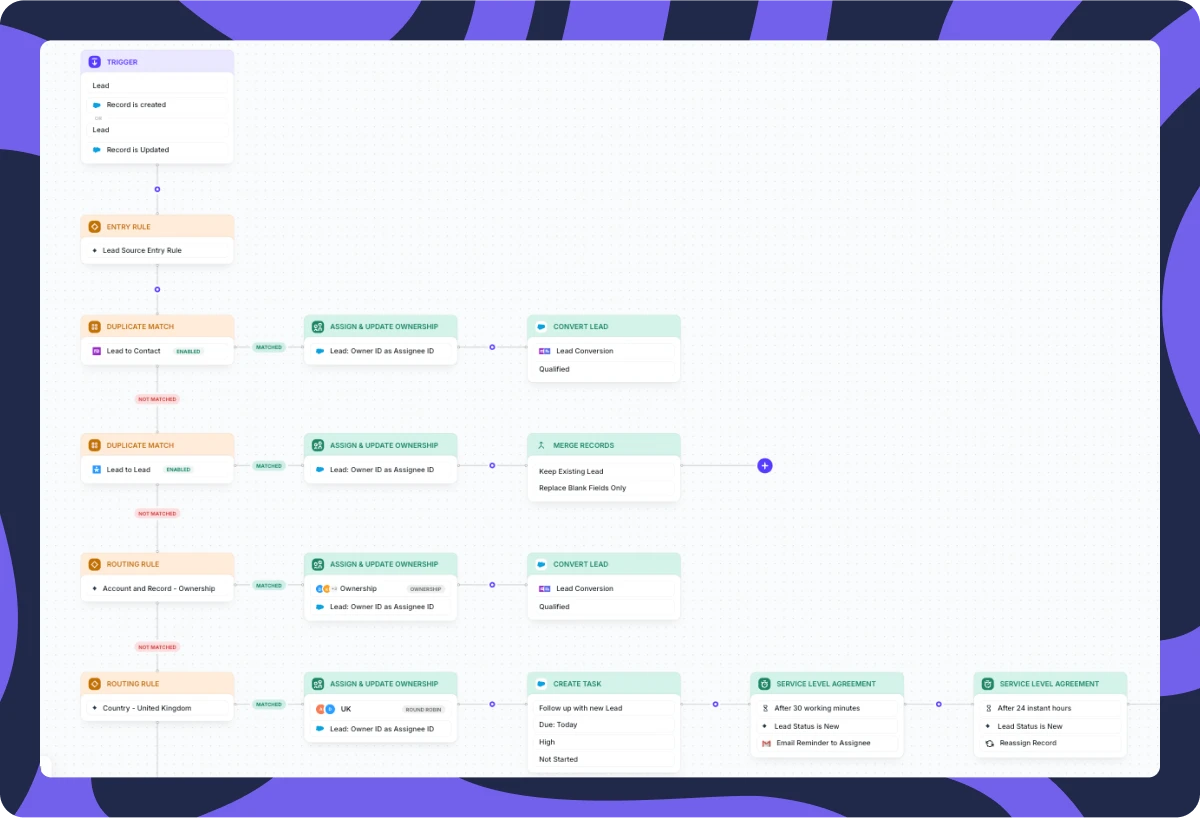
And all you had to do was import the list. It’s that simple.
Want a recap video on how to build such a workflow? Check it here:Managing Leads with Chilli Piper - Watch Video
What’s next?
Do it for yourself. Set up all your lead routing rules in hours with Distro. Book a demo here and you’ll all set up!